Temporary photo sharing for event hosts made simple
SnapPix TeamPublished 17 Aug 202628 min read

Temporary photo sharing for events means one thing: a no-app, QR-accessible gallery that collects every guest’s photos and videos and then stays live for a set window, typically three months, before it closes. Guests scan a code, upload straight from their phone browser, and never touch an app store. Hosts get one organised gallery instead of forty scattered group chats.
SnapPix is built around exactly this model, using AI-driven smart albums to sort the flood of candids automatically, and its hosts have collected over 4,200 guest photos across weddings, birthdays and corporate events. If you want the short version: create your gallery, print the QR code, put it on every table, and tell guests once, out loud, that uploading takes ten seconds.
Before your event, get these basics sorted:
Temporary photo sharing works because it removes every barrier between a guest taking a photo and that photo landing in your gallery, no app, no login, no forwarding required.
| Point | Details |
|---|---|
| Definition | A no-app QR gallery collects guest uploads and stays live for a limited window, typically three months. |
| Choose your workflow first | Guest upload and photographer delivery need different setups, don’t mix them without planning. |
| Hosting window shapes results | A shorter gallery window often misses the second wave of downloads; a few months’ hosting catches both. |
| Engagement beats passive sharing | Photo challenges with clear prompts and short deadlines noticeably increase guest participation. |
| Default settings that work | Moderation on, password optional, three-month hosting, high-resolution downloads enabled. |
| SnapPix as the ready-made option | Offers no-app uploads, QR galleries, AI albums and photo challenges, with 4,200+ guest photos collected across hosted events. |
Two completely different workflows hide under the same QR code, and mixing them up is the single most common setup mistake hosts make.
The first is guest upload: someone scans the code, lands on a browser upload page, picks photos from their camera roll or shoots fresh ones, and submits them into a shared gallery. No account, no download, no waiting. This is the workflow for weddings, birthdays, and any event where you want everyone’s phone acting as a second camera crew.
The second is photographer delivery: the QR code opens a view-only gallery that a professional populates after editing. Guests browse and download; they don’t upload anything. QR codes can serve either purpose, and the technical setup, permissions, and guest messaging differ sharply between the two.
Why this matters before you design a single sign: a guest-upload gallery needs moderation settings and an upload prompt. A delivery gallery needs none of that, but it does need a photographer who’s agreed on turnaround time. Confuse the two and you’ll either annoy a photographer who didn’t expect uploads, or leave guests staring at an empty gallery wondering where to add their photos.
Pro Tip: If you’ve hired a professional and also want candid guest shots, run both. Use a delivery gallery for the polished final set and a separate upload gallery for the raw, unedited guest chaos. That’s usually the good stuff anyway.
Getting a gallery live takes less time than writing your event playlist. Follow this order and you won’t be scrambling the morning of.
For signage, keep the wording short. Something like:
Scan. Snap. Share. Add your photos to our gallery, no app needed. Live until [date].
Announce the gallery once during speeches or a toast, and again as guests are leaving, when phones are full of the night’s best shots. A reminder text or email two to three weeks before the gallery closes catches the second wave of stragglers who forget to upload on the night.
Pro Tip: Print two QR signs, not one. One goes on the welcome table where everyone sees it first; the second goes near the bar or dessert table, where phones come out again later in the night.
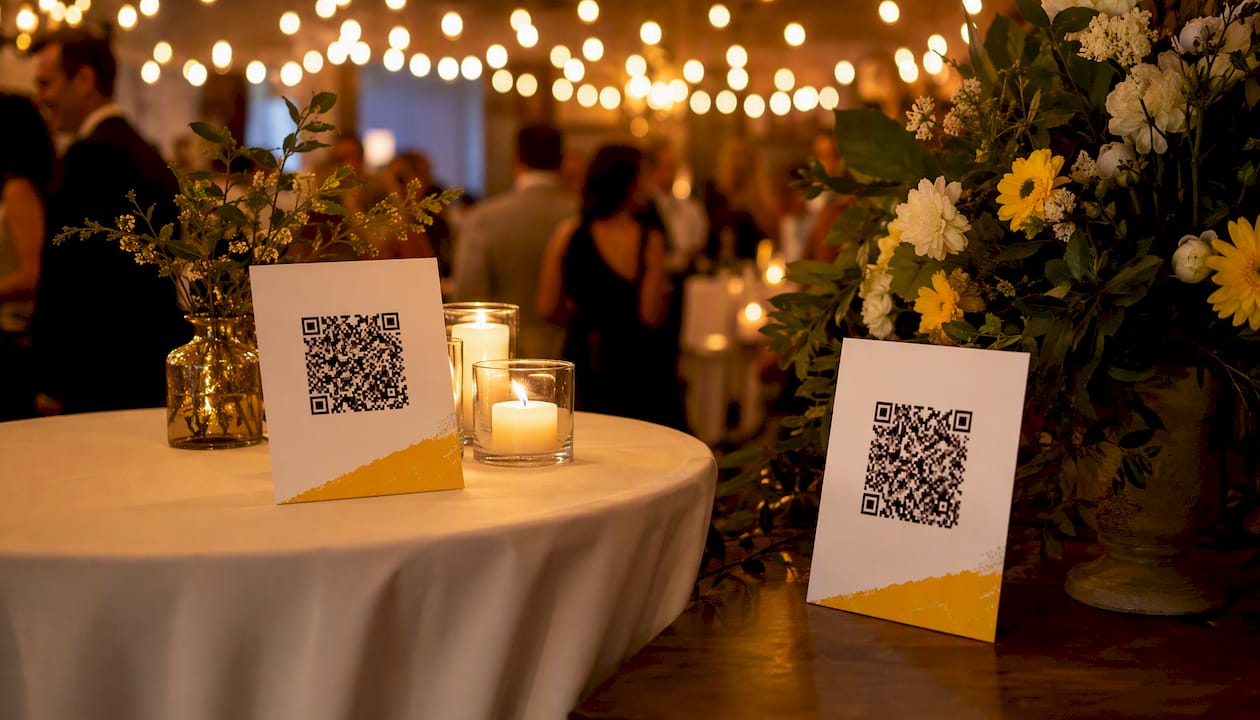
The guest side needs to work in one scan, or people give up. Here’s the sequence:
Most friction comes from mobile browser quirks rather than the platform itself. iOS Safari sometimes asks for camera permission twice; Android Chrome occasionally compresses large video files before upload, which is usually fine but can slow things down on a weak venue Wi-Fi signal. Neither is a fault, just a habit worth mentioning to older relatives who panic at any pop-up.
Give your front-of-house volunteers a short troubleshooting script:
Pro Tip: Appoint one tech-savvy guest as your “gallery buddy” for the evening. They handle the two or three confused relatives so you don’t have to leave your own party to troubleshoot a permissions pop-up.
Not every feature carries equal weight, and hosts often pay attention to the wrong ones.
Essentials for every event: no-app browser uploads, QR code generation, a defined hosting window, and moderation tools. Skip any of these and you’re back to chasing photos through group chats.
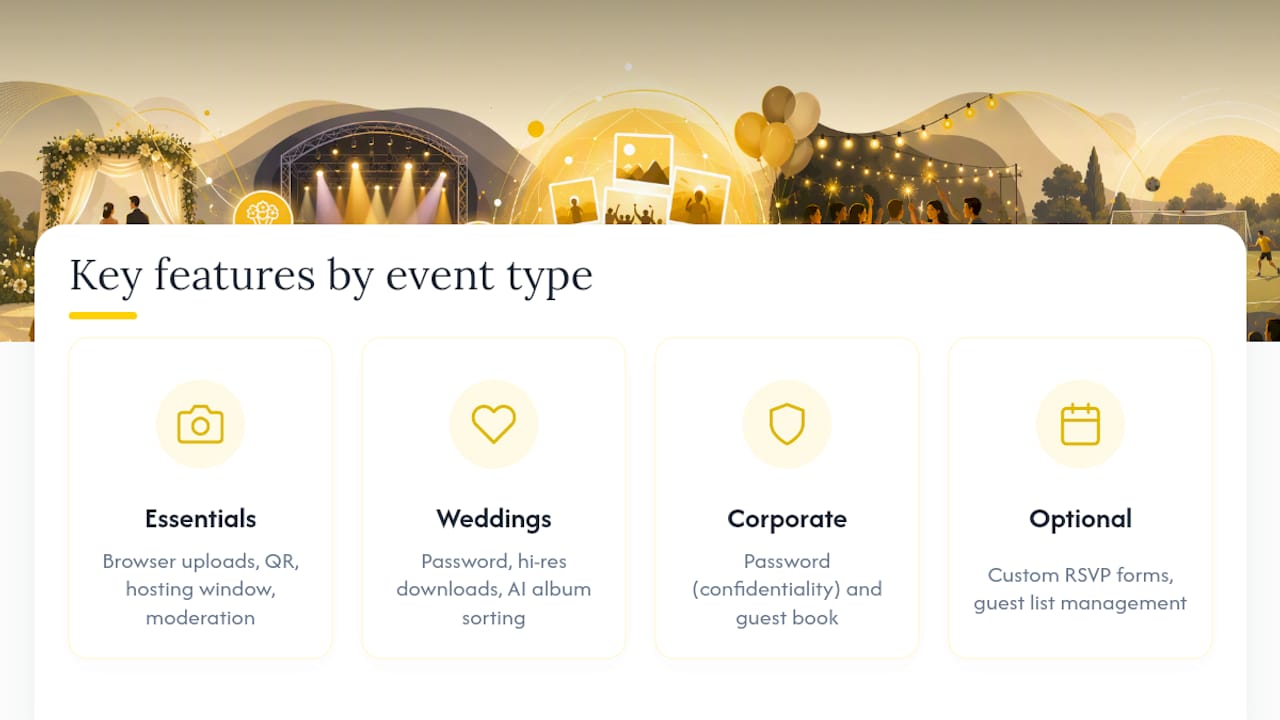
Matters more for weddings: password protection (family-only access), high-resolution downloads (for prints), and AI-driven album sorting, since a single wedding can generate hundreds of near-duplicate shots that need grouping by moment rather than by uploader.
Matters more for corporate events: password protection again, but this time for confidentiality, plus a guest book feature if the goal is collecting feedback alongside photos.
Nice to have, not essential: custom RSVP forms and guest list management, useful if you’re running the whole event through one platform, but not the deciding factor for photo collection alone.
A sensible default for most short-term galleries: moderation on, password optional unless the event is private, and a three-month hosting window as a starting point.
Pro Tip: Turn moderation on even for small family events. It takes seconds to approve a batch of photos, and it stops the one blurry, unflattering shot from sitting at the top of the gallery for three months.
A QR sign alone gets a trickle of uploads. Prompting guests properly gets a flood.
Photo challenges with clear prompts and a short deadline noticeably increase guest participation, largely because a vague “share your photos” instruction gives people nothing concrete to aim for. A challenge with five specific prompts and a 48-hour deadline turns passive observers into active contributors, because it gives them a reason to open the gallery a second time.
Pro Tip: Keep the challenge list to five prompts maximum. Longer lists feel like homework; five feels like a game.
Photos of real people are personal data, and treating a gallery as permanent by default is the wrong instinct.
Guests should know their photos aren’t sitting online indefinitely. A clear deletion policy, communicated up front, does more to reduce awkward requests later than any amount of fine print.
Set a defined gallery expiry and communicate it clearly. Because photos are personal data, a stated deletion policy beats indefinite storage, and a reminder email before closure gives guests time to download their favourites.
Send that reminder two to three weeks before the window closes. It’s a small courtesy that prevents the inevitable “wait, is the gallery still up?” message six months later.
Most platforms in this space, SnapPix included, charge a one-time flat fee per event rather than a subscription. You pay once, host your gallery for the included window, and optionally extend it later if you want the memories to stay accessible longer.
Hosting duration shapes guest behaviour more than most people expect. A shorter window often closes just as the second wave of downloads begins. Guests tend to collect event photos in two waves: the immediate rush after the event, and a slower trickle weeks later once someone reminds them. A gallery that shuts after a month misses that second wave entirely.
A few months’ window catches both waves comfortably for most weddings and parties. Some hosts prefer a full year, particularly for milestone events where guests scatter internationally and take longer to circle back. Longer default hosting periods exist precisely because 30 days undersells typical guest behaviour.
Match your window to your event: a birthday party with local guests might comfortably close at 30 to 60 days, while a wedding with out-of-town family should lean towards three months or beyond.
The gallery doesn’t end when the party does. Closing the loop properly is what turns a pile of uploads into something worth keeping.
Sample wording for that post-event email:
Pro Tip: Download your own high-resolution set the week after the event, before you forget. Don’t rely on the platform as permanent storage; treat it as a collection window, not an archive.
Most problems on the day have a thirty-second fix.
If a problem persists beyond a quick fix, note the timestamp and take a screenshot before contacting platform support. That detail saves several back-and-forth messages when troubleshooting remotely.
The appeal of a no-app QR gallery is how little it asks of anyone. Guests don’t download anything, don’t create a login, don’t hunt through a group chat three weeks later wondering who posted the good photo of the cake cutting. They scan, upload, done.
What’s easy to underestimate is the quality gap. Photos shared through messaging apps get compressed repeatedly every time they’re forwarded, so by the third re-share, that lovely candid shot looks like it was taken through fog. A direct upload to a gallery keeps the original resolution intact, which matters enormously if anyone wants to print a photo later.
The two-wave download pattern is real, and it surprises first-time hosts every time. There’s a burst of activity in the first 48 hours, then a long quiet stretch, then a second smaller burst when someone finally gets round to going through their camera roll weeks later. Close your gallery too early and you cut that second wave off entirely, losing photos that often turn out to be the most candid ones, taken once people had properly relaxed.
Reading a checklist is one thing; having the gallery live before your first guest arrives is another. SnapPix does exactly what this article describes: no-app browser uploads, a QR code guests can scan in seconds, and a three-month hosting window as standard, long enough to catch both waves of guest uploads without you paying for a subscription you’ll forget about.
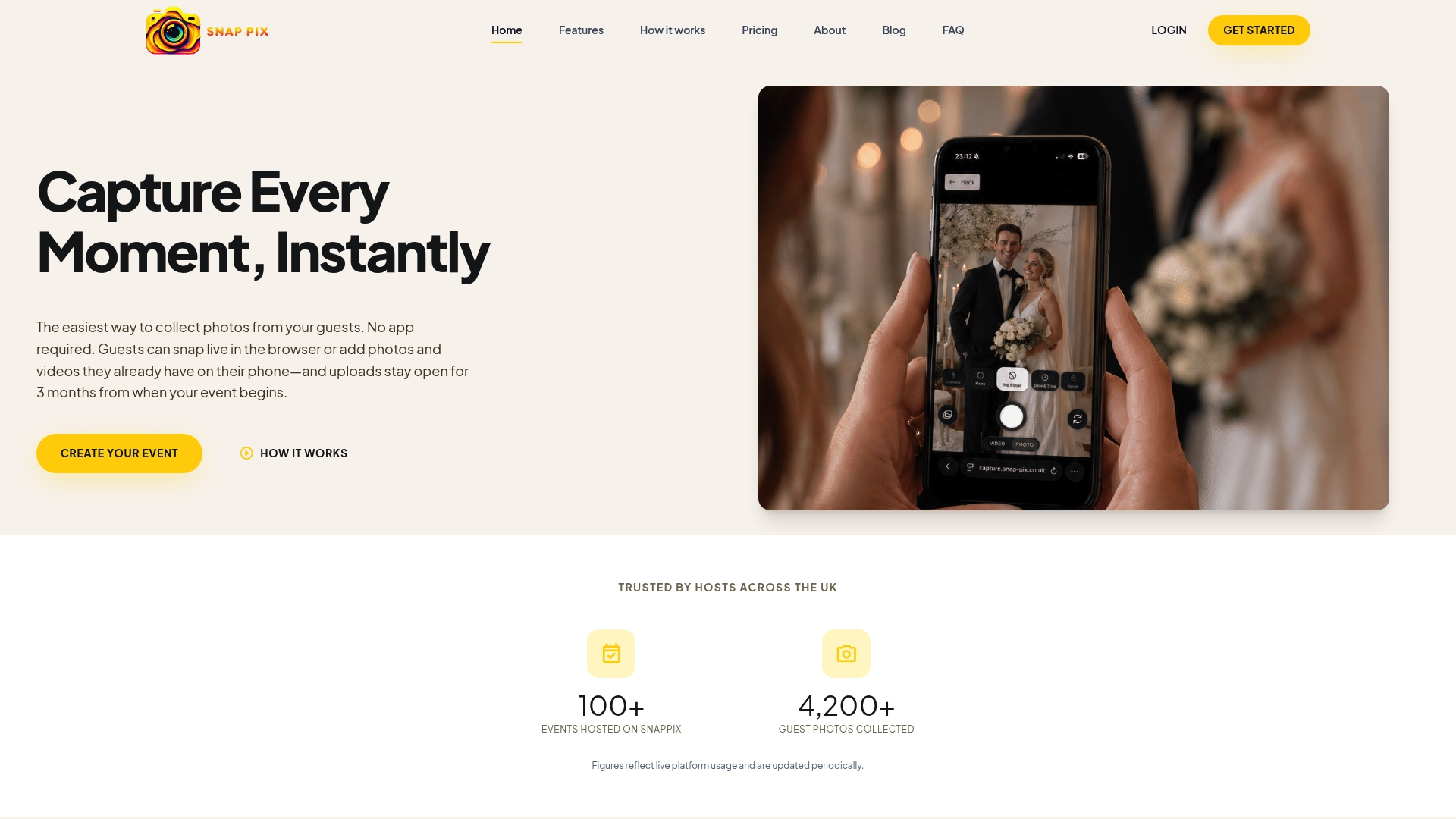
Setup takes minutes, not hours. You create the event, enable uploads and moderation, print your QR sign, and you’re ready. Photo challenges and a digital guest book are built in if you want to push participation higher, and AI smart albums sort the results automatically so you’re not scrolling through 400 unsorted photos the morning after. High-resolution downloads mean the final gallery is genuinely archive-quality, not a folder of compressed screenshots.
If you’re planning a wedding, birthday, graduation or corporate event and want guest photos collected without chasing anyone for files, start building your gallery on SnapPix before your invitations go out. The QR code needs to be on the table before the first guest sits down.
What is temporary photo sharing for events? It’s a no-app, QR-accessible gallery that collects guest photos and videos and keeps them available for a set period, often three months, before the gallery closes.
Do guests need to download an app? No. Guests scan a QR code, upload through their phone’s browser, and never touch an app store.
How long should a gallery stay open? Three months suits most weddings and parties, since guests upload in two waves, immediately after the event and again weeks later. Some hosts extend to a year for milestone events.
Can I password-protect my gallery? Yes, most platforms including SnapPix support optional password protection, useful for private weddings or confidential corporate events.
What happens when the gallery expires? Download your photos and export high-resolution originals before the closing date. A reminder email a few weeks beforehand helps guests grab their favourites in time.
A few resources worth bookmarking as you plan your gallery:

Event hosts' practical guide to posed and candid photos: perception research, hands on shooting tips, and no app guest uploads to boost candid coverage.

Which event technologies are production ready for 2026 and how to adopt them with clear consent, governance, and a no app QR photo pilot.

Which routes keep EXIF or strip GPS? Quick checks to view or remove metadata, plus a three month workflow to collect guest photos.