Product Launch Event Photos: What to Capture and Share
SnapPix TeamPublished 18 Nov 202627 min read

The best product launch event photos come from two sources working together: a short, planned shot list for the reveal and the product, and your guests’ phones for everything else. Plan the shots that matter, let attendees fill in the atmosphere, and collect it all in one private gallery so nothing is lost on the way back to the office. With SnapPix, guests scan your QR code with their phone camera and it opens in their browser, with no app to download and no account to create.
This guide is for UK organisers, in-house marketing teams and event hosts who want pictures they can use on social media, in a press note and in next year’s launch pitch.
A launch is a short story: people arrive, something is revealed, people react, and the product goes out into the world. Your pictures should follow that. These are the ones worth planning for:
The first nine are a short brief you can hand to whoever is taking pictures. The tenth is where your guests do the work for you.
A shot list is only useful if it follows the clock. Write your running order, then add the picture you need next to each moment. A simple version looks like this:
| Time in the order of the day | Moment | Shots to get |
|---|---|---|
| Before doors | Venue set-up | Wide room, signage, product on display, close-ups of details |
| Doors open | Arrivals and welcome | Entrance, welcome desk, first guests with drinks |
| Opening remarks | Host or founder speaks | Speaker with branding behind, audience from the side |
| The reveal | Product unveiled | Cover coming off, first look, applause, speaker holding product |
| Directly after | Hands-on time | Guests trying the product, close-ups of hands and details |
| Later | Networking | Conversations, team group photo, product table |
| Close | Thank-you and giveaways | Final room shot, people leaving with goodie bags |
Two habits save the most trouble. First, rehearse the reveal with whoever is operating the lights, screen or cover so you know exactly where to stand. Second, give one person ownership of the list. If everyone thinks someone else is photographing the founder, nobody is.
Live events are hard on product pictures: mixed lighting, people walking past, glossy surfaces that reflect everything. A few practical points help:
If you have hired a professional photographer, give them the shot list and the running order in advance and agree who owns the pictures. In the UK the photographer normally owns the copyright in the images unless the contract says otherwise, and a business only gets the rights the contract grants, according to a UK legal guide to photography contracts. Make sure the agreement covers how you may use the pictures and for how long.
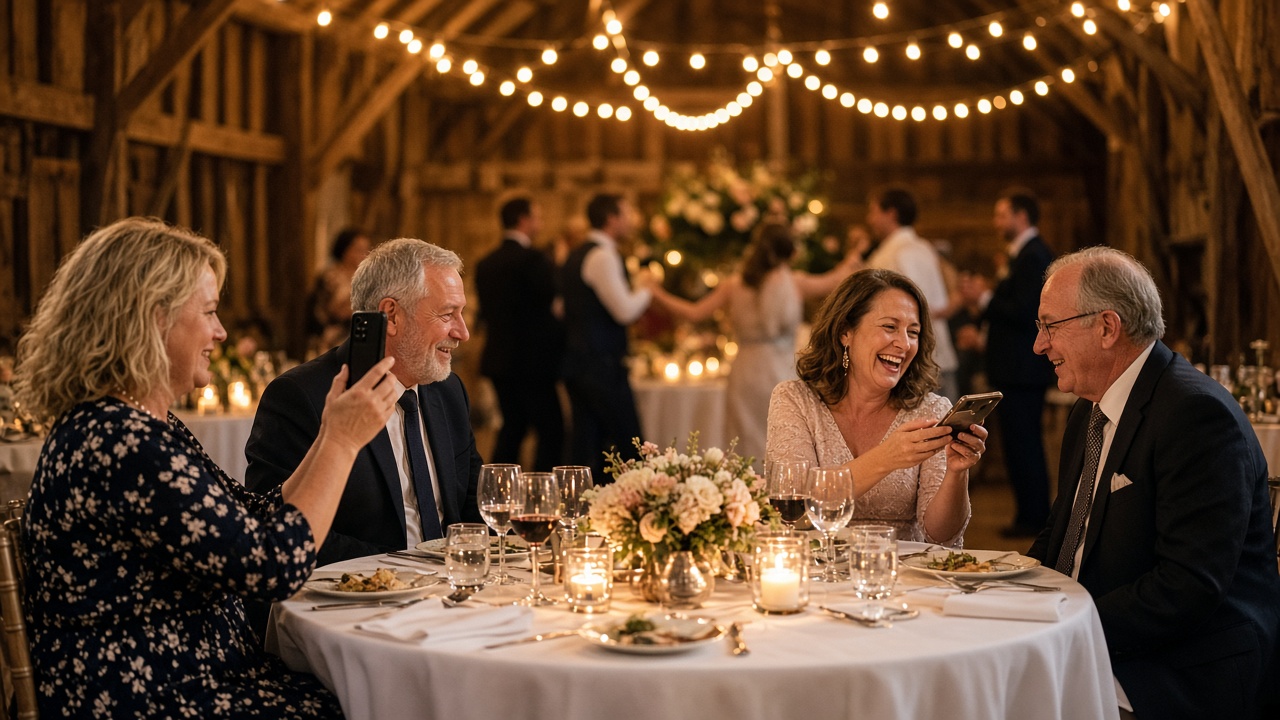
Your planned shots will cover the product. They will not cover every laugh at the product table, the colleague’s video of the reveal from the back of the room or the picture of the cake shaped like your logo. Your guests will, if you make it easy.
With SnapPix you create an event in under a minute and get one QR code. Put it on the entrance sign, on table cards and on the invitation. Guests scan it and add photos, or videos of up to 60 seconds, straight from their browser, or upload from their camera roll. If the venue has poor mobile signal, uploads wait on the phone until it comes back. Everything lands in one private gallery that you control, and your QR code carries a private event password, so only people you give it to can get in. There’s nothing for guests to type.
A few features suit launches in particular:
For more on running this at work, see our guide to corporate event photo sharing, and for the quickest set-up on the day, the fastest way to share photos at a live event.
Guests add more when they know the QR code exists. Mention it in the invitation or RSVP email, put it on the sign at the entrance, and have the host say it once in the opening remarks. The fewer steps between wanting to share a picture and sharing it, the more pictures you get. Scanning the code and tapping upload is about as short as it can be.

After the event you have two jobs: getting a few excellent pictures out quickly, and keeping the full set for later.
Note the timings. Guests can add photos for 3 months from the event start date, and the gallery is hosted for 12 months from the event date. Do not leave downloading to the last minute. Take your ZIP soon after the launch and keep your own copy.
If you work with outside suppliers such as a photographer or videographer, control what vendors can see in your gallery. For more on privacy, read our guide to secure event photo sharing.
This is general information, not legal advice. If you are unsure about a specific case, ask your own legal adviser or your organisation’s data protection lead.
In the UK, pictures of identifiable people are generally treated as personal data under UK GDPR. Some practical habits help you stay on the right side of that:
Put a short line on the invitation and at the entrance, for example: “We’ll be taking photos at this event. If you’d rather not be in them, tell a member of the team.” Because your SnapPix gallery is private, with the QR code carrying the password, the pictures guests upload are shared with the people you invite and not with the whole internet. You decide what goes further.

Every SnapPix event starts on the Free plan: £0, no card needed, 10 uploads per guest, with unlimited guests and high-resolution downloads with a one-click ZIP. That suits a small launch or a trial run.
For a bigger room, Full Event Access is £14.99 one-time per event, with unlimited uploads and up to 50 AI illustrations, no subscription. The illustrations are caricature and watercolour drawings, which can make a fun giveaway at a launch (up to 4 per guest). Both plans include everything else: challenges, the guest book, the slideshow, Smart Albums, private share links and Google Drive backup. See the plans on our pricing page.
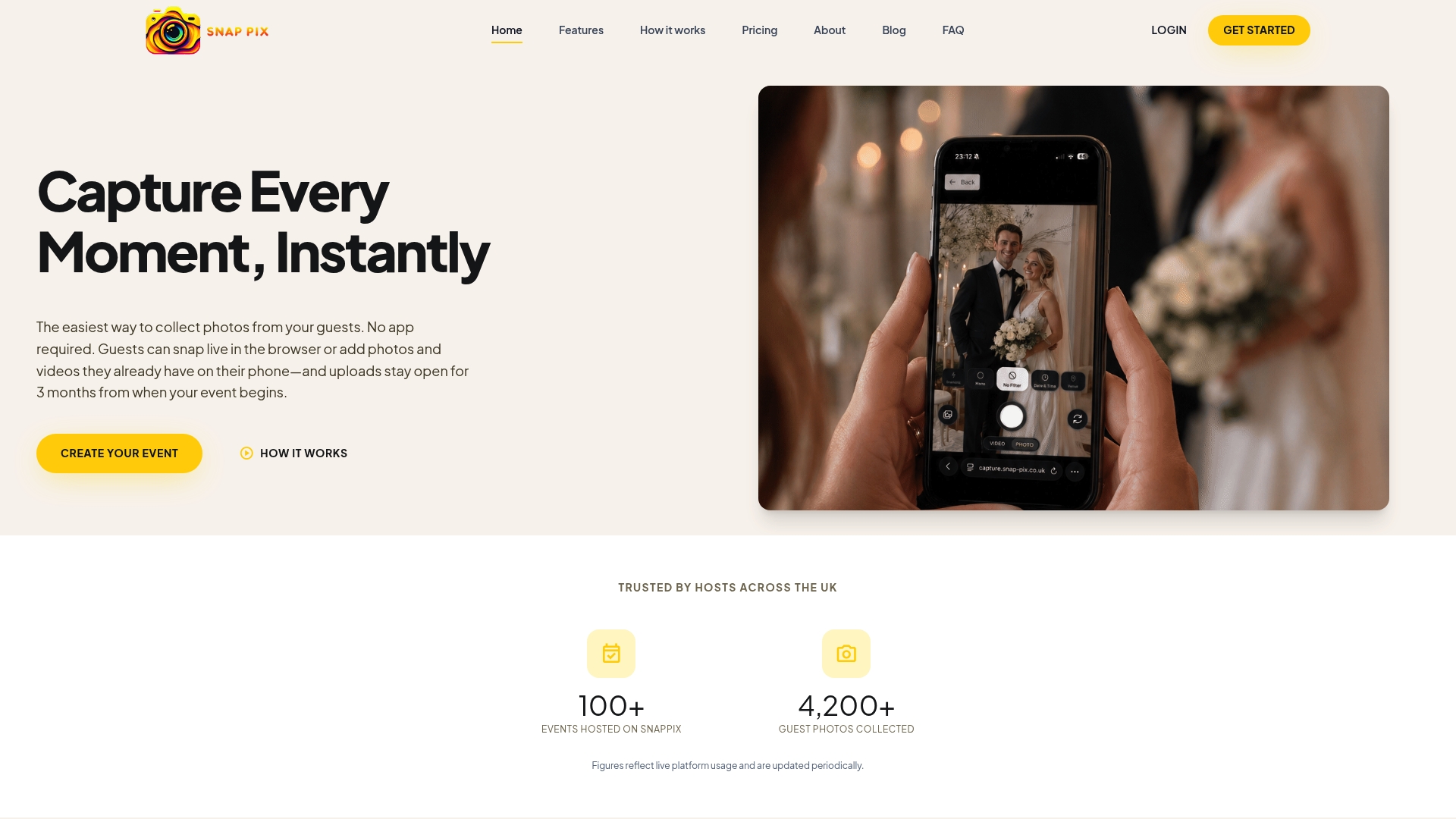
If you want printed QR place cards, table signs or entrance signs, they are posted to you, so you can have the code on display on the day.
We built SnapPix in Manchester after making it for our own wedding, and the lesson carries over to any event with a room full of people holding phones. The best pictures are rarely the ones on the plan. They are the reaction in the third row, the colleague’s video from the back, the laugh at the product table.
So we think a launch needs both. Plan the shots that matter and brief whoever takes them. Then give everyone else a way to add theirs that takes seconds and asks nothing of them. That is why guests scan a QR code and it opens in the browser, with no app and no account, and why uploads wait on the phone if the venue signal drops.
Start on the Free plan at £0 with no card needed, and move to Full Event Access at £14.99 one-time per event if you want unlimited uploads and up to 50 AI illustrations. Then download your ZIP after the event and connect Google Drive.
Liam
Plan a short list of around ten essential shots and let guests supply the rest. A tight brief gets you the pictures you cannot do without, and a shared gallery gives you plenty of choice for social posts and reports.
No. Guests scan your QR code with their phone camera and it opens in their browser, with no app to download and no account to create. They can take photos and videos of up to 60 seconds or upload from their camera roll.
Guests can add photos for 3 months from the event start date. The gallery is hosted for 12 months from the event date, so download your ZIP and connect Google Drive well before then.
In the UK, pictures of identifiable people are generally personal data, so tell guests photography is happening, offer an easy opt-out and ask before publishing close-ups. This is general information, not legal advice. For a specific question, speak to your own legal adviser or data protection lead.
Yes. SnapPix galleries are private by default, and your QR code carries a private event password, so only people you give it to can get in. You can also create private share links with an expiry date.
What disposable cameras on every table really cost a UK wedding once developing is added, where film still wins, and a phone-based alternative from £0.

What a normal phone photo weighs in MB, JPEG vs PNG vs HEIC, and what size you need for screens and prints, so guests' event photos stay sharp.

How to collect every guest's photos and videos at a bar mitzvah in one private gallery, with no app, plus tips on children's photos and poor venue signal.