Event Photo Uploads for Hosts: No App, Even on Weak WiFi
SnapPix TeamPublished 10 Oct 202621 min read

The fastest, most reliable way to set up event photo uploads is a browser-first gallery that guests reach by QR code or short link, with a host review queue and a set upload window. No app, no account, no friction: guests tap, snap or choose a photo from their camera roll, and it lands in your gallery within seconds. We built our event photo upload platform around exactly this approach, and it works because it removes every barrier between a guest’s phone and your final album.
TL;DR:
- Test the full QR upload flow on iOS and Android before printing signs, including with mobile data and wireless internet disabled to expose weak signal problems.
- Keep uploads open for at least a week after the event, and extend the window or arrange a hotspot if the venue’s signal fails.
- A single challenge during cocktail hour or after group photos, paired with a slideshow of approved uploads, can sustain participation better than repeated announcements.
- A host review queue keeps unapproved photos private, but easier uploads increase review work, so limit moderation to what you can manage during the event.
- Calendar attachments are static, so add the gallery link to the event description; guests need that live upload route to contribute multiple photos.
Run through these five steps in the week before your event so the upload flow is tested and ready before a single guest arrives.
Pro Tip: Test your QR code from a phone with mobile data turned off and WiFi disabled, this is the closest simulation of a weak-signal venue.
Start by creating your event gallery and selecting a browser-first upload path. A QR code or short link that opens straight in a guest’s phone browser avoids the single biggest cause of low participation: asking someone to install an app before they can help you. Most adults in the United States own a smartphone, and around two-thirds of smartphone owners use their phone to share pictures or videos, which makes a zero-install flow the natural fit for how people already behave.
Once the gallery exists, decide on the practical details:
Before the big day, test the whole flow on a few different devices and browsers, then simulate a weak signal by switching to airplane mode partway through an upload. A no-app QR upload flow that resyncs automatically once signal returns is far more forgiving than an app that needs a stable connection to even open.
Guests cannot upload what they cannot find, so place your QR code and short link where eyes naturally land.
Consistency matters more than cleverness here. One clear sentence repeated in three places beats three different explanations.
A gallery that exists is not the same as a gallery that fills up. Timing and light prompts do the real work.
A practical scan-and-upload prompt plus a visible slideshow of approved photos tends to outperform repeated verbal reminders for driving sustained participation through the evening.
Weak mobile signal is the most common reason photos go missing, but a browser-first setup handles it better than most hosts expect.
A review queue is what separates a calm, organised gallery from a chaotic one.
A time-limited upload window also gives you a natural point to close the gallery, review everything once, and deliver a finished product rather than an ever-growing folder.
A calendar invite is not a gallery. Google Calendar and Apple Calendar let you attach a single file or link to an event, but that attachment is static and cannot accept dozens of guests uploading at once or moderate what comes in. The practical fix is simple: drop your gallery’s QR short link into the event description, so guests who open the calendar invite see the same upload path as everyone else.

We built SnapPix around the exact steps above: guests scan a QR code, upload straight from their phone browser or camera roll, and never need to install anything. The gallery remains open for a period after the event, accommodating late uploads by guests.
A typical host journey looks like this: create your event, generate your QR code, place signage, moderate uploads as they land, then deliver the finished gallery.
Every host faces the same trade-off: the easier you make uploading, the more you will need to moderate afterwards. Our rule of thumb is simple. Keep the upload window open for at least a week past the event, run one challenge during a natural lull rather than several scattered prompts, and only take on moderation you can realistically keep up with during the party itself. For more on signage placement and guest-engagement scripts, see our tactics for encouraging guest photos.
— Liam
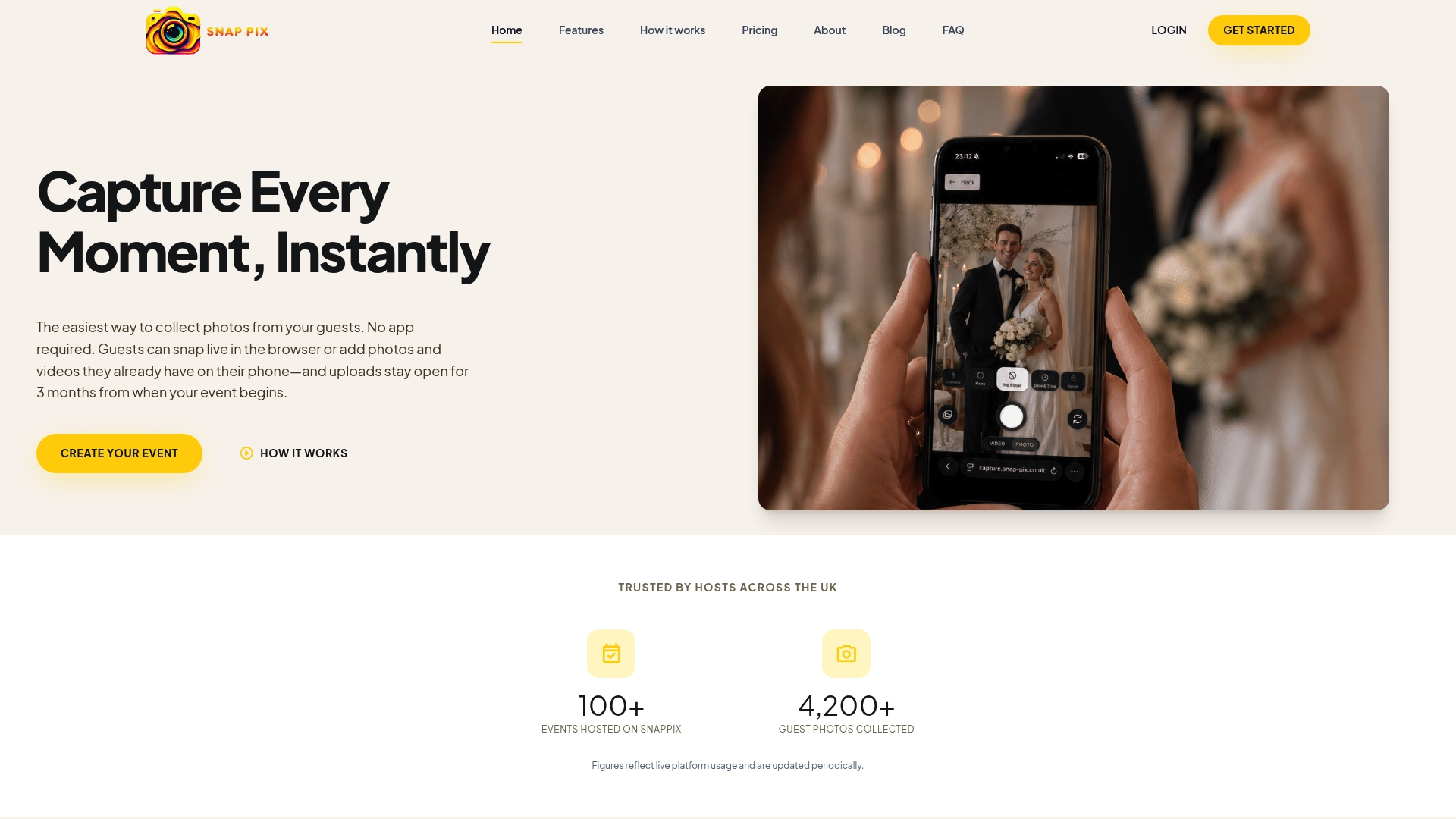
Our platform is designed so you can go from nothing to a working upload link in less time than it takes to print signage. No app for guests, no account required, just a QR code that opens straight into their browser, with smart albums, photo challenges and an upload window included.
Head to our pricing page and activate your event gallery today.
The best setup needs no app at all: a browser-first gallery reached by QR code or short link lets guests upload directly from their phone’s camera or camera roll. This avoids install friction and works on both iOS and Android without extra steps.
Google Calendar and Apple Calendar both let you attach a file or link to an event, but this attachment is static and only shows one item to viewers. For guest uploads, add your gallery’s QR short link to the event description instead.
Share a single gallery link or QR code everywhere guests will look: invitations, signage and on-screen slides. A host moderation queue keeps the shared gallery tidy before you deliver the final set.
Yes, several browser-first platforms offer a free tier for smaller events, including our own Free plan. For larger weddings needing a longer upload window and moderation tools, a paid one-off activation such as Full Event Access is usually worth the modest cost.
No, a well-built guest upload system works entirely through the browser with no account or app needed. This is the main reason browser-first QR uploads see higher participation than app-based alternatives.

Set up a no app, no account shared gallery hosts can test quickly. Practical host checklist, COPPA privacy notes, upload prompts, and backup steps to...

Secure sponsor access to event photos with a host controlled workflow. Use time limited QR links, view only tokens, instant revocation, and access logs.

A practical host first workflow: collect no app QR uploads, keep moderation and professional curation, set retention and backup plans so you stay in control.