QR Code Wedding Photos: How to Set Them Up, Step by Step
SnapPix TeamPublished 28 Oct 202633 min read

A QR code for wedding photos is a square code on a table card or sign that guests scan with their phone camera. It takes them straight to one shared gallery where they add their photos and videos. You create the gallery, print the code, and every guest becomes a photographer without installing anything. This guide covers how to set it up, where to put the code, how to keep it private, and what to do with the photos afterwards.
Your professional photographer will capture the ceremony, the portraits and the key moments. Your guests capture the rest: the dance floor, the speeches from the back of the room, your nan laughing at the cake. Those photos are often the ones people love most, but they usually end up scattered across 80 camera rolls.
A QR code fixes that. Guests already know how to point a phone camera at something. There is no group chat to join, no link to hunt for in an email, and no file-size limit to hit.
Three things decide whether it works on the day:
The rest of this guide is built around those three points.
There are two broad routes. You can use a general photo storage service and turn its shared album link into a QR code, or you can use a tool made for collecting event photos. Here is how each works.
Most photo storage services let you share an album with a link. Google’s own help guide explains that you create an album, add a title, tap share, and choose who to share with. It also says an album QR code can be generated from the share menu, and that you can screenshot it to print or share offline.
This route is free and quick. The catches are worth knowing before you commit:
If you go this way, treat your printed QR code as final. Set the album up, test it, and only then send anything to print.
A purpose-built tool handles the awkward parts for you. With SnapPix, you create your event in under a minute and get one QR code for table cards, signs or invitations. Guests scan your QR code with their phone camera and it opens in their browser, with no app to download and no account to create.
Here is how it works in practice:
The guest portal is available in 6 languages, and guests can add it to their home screen if they want to come back to it later in the evening.
The best code in the world fails if nobody sees it at the right moment. Think about when guests have their phones in hand and a minute to spare.
A UK stationery retailer that sells wedding QR signs lists A5, A4, A3 and A2 sizes and suggests a welcome table, gift station or the spot beside the guest book. As a rule, A5 suits a table, and A4 or larger suits an entrance.
If you want a closer look at sign wording and layout, our guide to a wedding QR code sign covers it.
Keep it short. Guests should understand it in three seconds.
Leave plenty of white space around the code and keep strong contrast. A busy background or a pale code on cream paper is a common reason scans fail.
This is the step people skip, and the one that matters most.
Then ask someone older than you, say a parent or grandparent, to try it without help. If they manage, your guests will too.
This is a real worry in the UK. Plenty of lovely venues sit in valleys, in thick-walled stately homes or in the middle of fields.
With SnapPix, uploads wait on the phone if signal drops. The offline upload queue sends the photos when the guest’s phone finds a connection again, so nobody has to remember to try again. It also helps to ask your venue whether guests can use their wifi, and to say so on the sign if they can.

Wedding photos are personal. Some of your guests will not want their faces shared widely, and that is fair.
With a general shared album, the link is the main barrier. Google explains that to make an album private you remove collaborators and turn off link sharing, and that turning off collaboration stops people adding more photos while they keep access. Those are useful controls, but they all depend on you managing them.
SnapPix galleries are private by default. Your QR code carries a private event password, so only people you give it to can get in. There’s nothing for guests to type.
A few more habits help:
On the legal side, privacy rules for hobby and household use are different from those for organisations. If you are a venue, planner or company collecting photos at an event, the Information Commissioner’s Office explains that you must pick the right lawful basis under UK GDPR, and that consent is worth considering where sharing is unexpected or particularly intrusive. If you are unsure what applies to your event, check the ICO’s guidance or ask a professional adviser.
A QR code is just a picture of a web address. It does not expire by itself. What can stop working is the address behind it.
That is why, with a shared album, resetting the link makes the old code useless. It is also why some free online QR generators create temporary codes that stop working after a trial. Always check that the code you print is permanent before you spend money on stationery.
With SnapPix, there are two time windows to know about:
So the code keeps working for uploads well after the wedding, which is handy for guests who send photos the following week. Use the hosting window to download everything and back it up. More on that below.
A gallery is more fun when guests have something to do. Both SnapPix plans include these features:
On paid events, guests can also make AI caricature and watercolour illustrations, up to 4 per guest and 50 per event. They make a fun keepsake and a talking point at the table.
Challenges are the quickest way to turn a quiet gallery into a busy one. Put two or three on the table card, and guests have a reason to scan.
Every SnapPix event starts on the Free plan: £0, no card needed, 10 uploads per guest. Guests are unlimited on both plans.
Full Event Access is £14.99 one-time per event, unlimited uploads and up to 50 AI illustrations, no subscription.
Both plans include everything else: photo challenges, the digital guest book, Smart Albums, private galleries, the slideshow, ZIP download and Google Drive backup. You can see the full breakdown on the pricing page.
As a rough guide, 10 uploads per guest is plenty for guests who take a handful of snaps. If you have a lively crowd, a long day or a lot of video, the paid plan means nobody hits a limit mid-party.
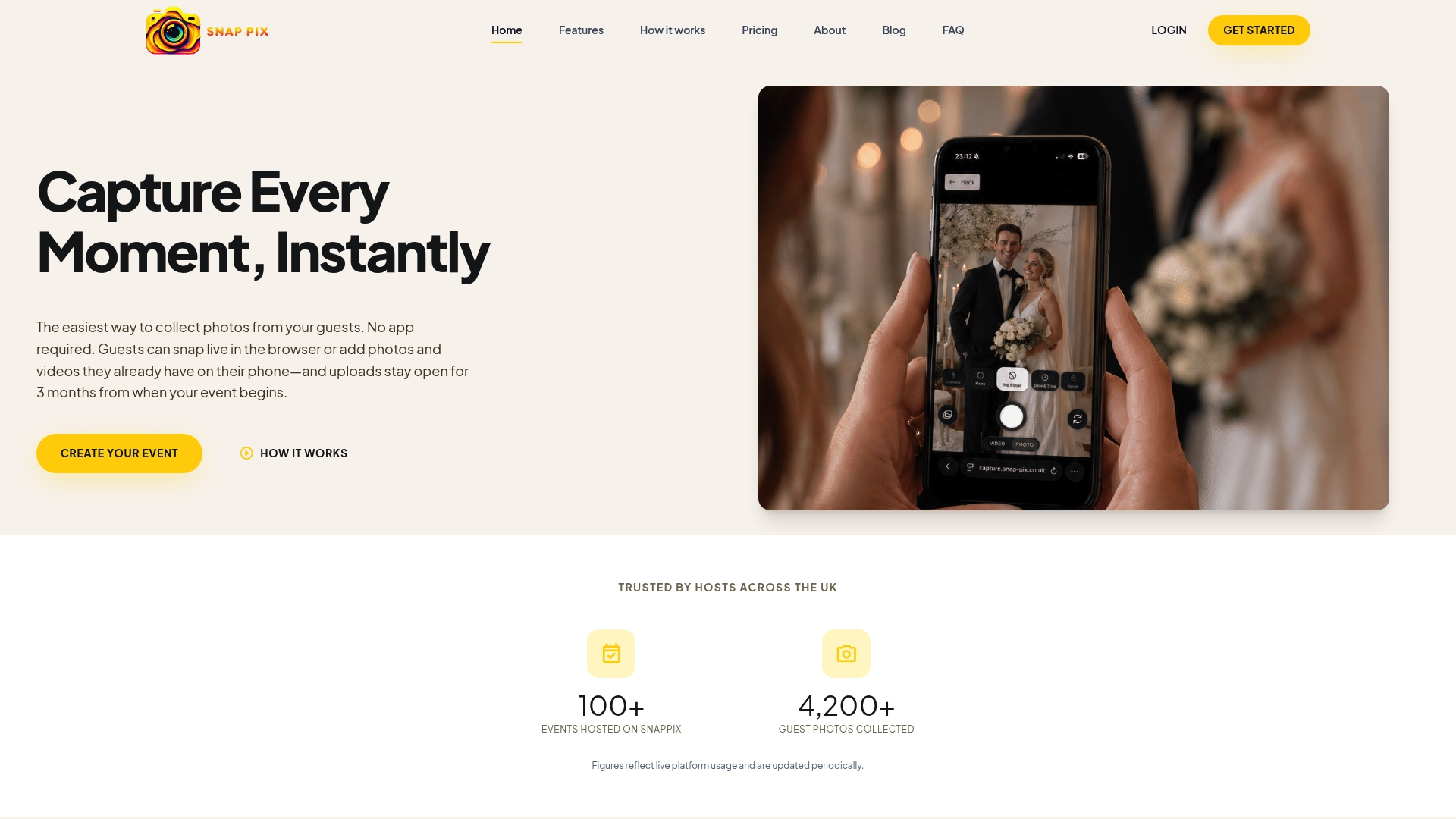
If you want to try it, create a free event first, scan the code yourself and see how it feels. You can upgrade later from the SnapPix pricing page if you decide you want no cap on uploads.
SnapPix also works before the wedding. You can build a guest list for individuals and parties, and export it as a CSV. Online RSVPs can run through an open RSVP link or QR, or through personal email invite links. You can ask your own custom questions, add follow-up questions (for example, dietary needs if someone says yes), and let guests bring a plus-one if you allow it. Responses are summarised for you, so you are not counting replies on the back of an envelope.
We built SnapPix in Manchester after making a photo-sharing set-up for our own wedding. What we learned is that every barrier costs you photos. Ask someone to download an app at a reception, and most will say they will do it later. Later never comes.
So we kept the guest side to one action: scan and shoot. No account, no password to remember, no instructions that need explaining. The host side is where we put the controls: a private gallery, challenges, Smart Albums and a slideshow.
Our advice to couples is to spend your effort on where the code goes and how clearly it is explained, not on elaborate design. A plain card on every table, plus one at the entrance, beats a beautiful sign nobody notices. And test the offline queue at your venue before the day if you have any doubts about the signal.
— Liam
A gallery is a lovely thing, but you want your own copies. Do this within a few weeks of the wedding, not at month eleven.
The gallery is hosted for 12 months from the event date, so make your downloads and backups well inside that period. That is also the best way to share a very large number of photos: one ZIP for you, one Smart Album or private link for everyone else, rather than hundreds of messages.
For a deeper walk-through, see our guide on how to collect wedding photos from guests, or the broader QR codes for your wedding guide.
If you want more ideas on how couples gather pictures, our wedding photo collector guide is a good next read, and our page on a QR code for guests to upload photos covers other celebrations such as birthdays and graduations.
Create a shared gallery or album, then turn its address into a QR code. With SnapPix, you create the event in under a minute and the QR code is made for you. Download it or order printed cards, test it on two phones, then put it on tables and signs.
Not with SnapPix. Guests scan your QR code with their phone camera and it opens in their browser, with no app to download and no account to create. Some general album services ask guests to sign in, so check before you choose.
The code itself does not, but the page it points to can change or stop working. Temporary codes from some free generators can lapse, and resetting a shared album link breaks the old one. With SnapPix, guests can upload for 3 months from the event start date, and the gallery is hosted for 12 months from the event date.
Download one ZIP of the full gallery, back it up to Google Drive, and send family a private share link with an expiry date. For themed collections, ask Smart Albums to build an album from something like “first dance” or “cake”.
It can be. SnapPix galleries are private by default, and your QR code carries a private event password, so only people you give it to can get in. Share the code with guests only, and ask before posting photos of children anywhere public.

Fun photo challenge ideas and prompts for weddings, birthdays, family days and work do's, with tips on making them easy, inclusive and simple to run.

Comparing wedding guest photo apps and the alternatives: what to look for, what to avoid, and how a no-app QR gallery works for UK couples.

Stop chasing guests for photos. Learn how to centralize event photos in one QR gallery, with a simple workflow, privacy basics and copyright tips for hosts.