Two Minute Fix for Browser Camera Permissions at Events
SnapPix TeamPublished 1 Oct 202624 min read

When your browser asks for camera access during an event, tap or click Allow to let the page use your camera for photos or video. If you blocked it earlier, you’ll need to reset that choice before the camera will work. This prompt isn’t a glitch: your browser is checking with you first because camera access is private by default.
TL;DR:
- Most permission issues are caused by accidental blocking or system-level restrictions, which can be fixed in seconds with quick toggle adjustments.
- On mobile, guests need to check browser permissions via site info icons and refresh the page after making changes to enable camera access.
- On desktop, clicking the lock icon next to the URL and changing camera permissions is the fastest way to reset blocked access on most browsers.
- Ensuring the device’s operating system settings allow camera access, and checking for hardware shutters or external webcam connections, prevents common hardware blocks.
- Using QR code-based photo uploads can bypass permission problems entirely, providing a reliable fallback for guests unwilling or unable to grant live camera access.
Most guests are on their phones, so this is where permission issues show up most. The good news is that the fix usually takes seconds once you know where to look.
On Chrome for Android, the browser shows a simple pop-up the first time a page wants your camera: tap Allow and you’re capturing straight away. If you tapped Block by mistake, or dismissed the prompt without choosing, you’ll need to reset it manually.
Google’s own guidance confirms this Site settings ▶ Camera path is the standard way to fix a previously blocked site on Android. On iPhone, Apple documents the same Ask, Deny or Allow options sitting inside Settings ▶ Safari ▶ Camera.
Pro Tip: If a host has printed a QR code with instructions, look for the line “tap Allow when asked” on the sign, it’s there for exactly this moment.
Desktop guests hit the same wall, just with slightly different menus. The lock icon next to the address bar is your friend on almost every browser.
Chrome’s support page sets out this same site-info method for desktop, which is worth bookmarking if you’re helping other guests on the day. If your laptop has more than one camera, an external webcam alongside a built-in one, check the dropdown menu on the capture page itself and pick the correct device before you start recording.
Blocking a prompt by accident is common, especially when a phone is passed between hands at a party. Resetting it takes less time than finding a volunteer.
Chrome’s official permissions guide walks through exactly this lock icon method for resetting a blocked camera permission, and the same logic applies across most modern browsers.
Sometimes the browser isn’t the problem. Your operating system or your laptop’s hardware might be blocking the camera before the browser even gets a say.
A commonly overlooked step: Apple’s own support documentation notes that granting camera access is often a two-step process on macOS, you approve it in the browser, then confirm the browser itself is allowed in system privacy settings. Missing that second step is one of the most common reasons clicking Allow in the browser appears to do nothing.
When the camera won’t load, work through this in order rather than jumping between settings at random.
Pro Tip: Most camera issues at events are solved by step two alone, so start there before assuming your phone or laptop is faulty.
A little preparation on the host side saves a lot of stress on the night. Most permission problems are predictable, and predictable problems are fixable in advance.
Behind the scenes, your browser keeps a live record of whether a site is allowed to use your camera, and that record can change mid-session, not just at the first prompt. If you switch a site’s Camera setting from Block to Allow while the page is still open in another tab, most modern browsers will update that page’s access without needing a full reload, though refreshing is still the safest habit for guests to build.
This matters at events because permissions aren’t always stable for the whole three-month window a gallery link might stay live. A phone that hasn’t visited the page in a while may find its permission has quietly reset, prompting the browser to ask again as if it were the first visit. That’s expected behaviour, not a fault, and the fix is the same tap of Allow you’d give the first time round.
For guests, the practical takeaway is simple: if a camera that worked earlier in the evening suddenly stops, treat it as a fresh permission check rather than a broken page. A quick look at the lock icon usually confirms whether the site has been re-blocked or is still sitting on Allow, and adjusting it there settles the issue in seconds.

Not every browser handles a camera request the same way, and knowing the quirks saves confusion at the venue. Chrome on Android and desktop shows a clear pop-up with Allow and Block buttons, and its site-info menu makes changing that choice later straightforward, as Chrome’s own support pages confirm.
Safari, on both iPhone and Mac, tends to fold camera settings into either the address bar’s site menu or the operating system’s own Settings app rather than a single in-page pop-up, which is why iPhone guests sometimes look in Safari itself and miss the option sitting inside iOS Settings under their browser’s name.
Firefox keeps its Camera permissions inside Privacy & Security settings rather than a one-tap prompt shortcut, which suits guests comfortable digging into a menu but can feel slower for someone who just wants to snap a photo and move on. None of these differences change the underlying decision you’re making, Allow or Block, but they do change where you’ll find the switch if you need to flip it later. Knowing your own browser’s habit before the event starts is worth thirty seconds at home.

Most camera problems at events come down to three things: a prompt that got blocked by accident, an operating system quietly denying the browser, or a physical shutter nobody remembered to open. None of that is really about technology, it’s about a room full of people trying to solve a small problem quickly, often with a drink in one hand.
That’s part of why SnapPix leans on QR-based uploads as well as browser capture, so a guest who can’t or won’t grant camera access still has a route to share their photos. For hosts wanting the fuller technical picture, our notes on browser camera capture go a layer deeper.
— Liam
Not every guest wants to grant camera access, and chasing permission settings shouldn’t be anyone’s job at a party. SnapPix gives hosts a QR code guests can scan to upload photos straight from their camera roll, no app, no account, no permission prompt required, alongside a browser capture option for those happy to shoot live.
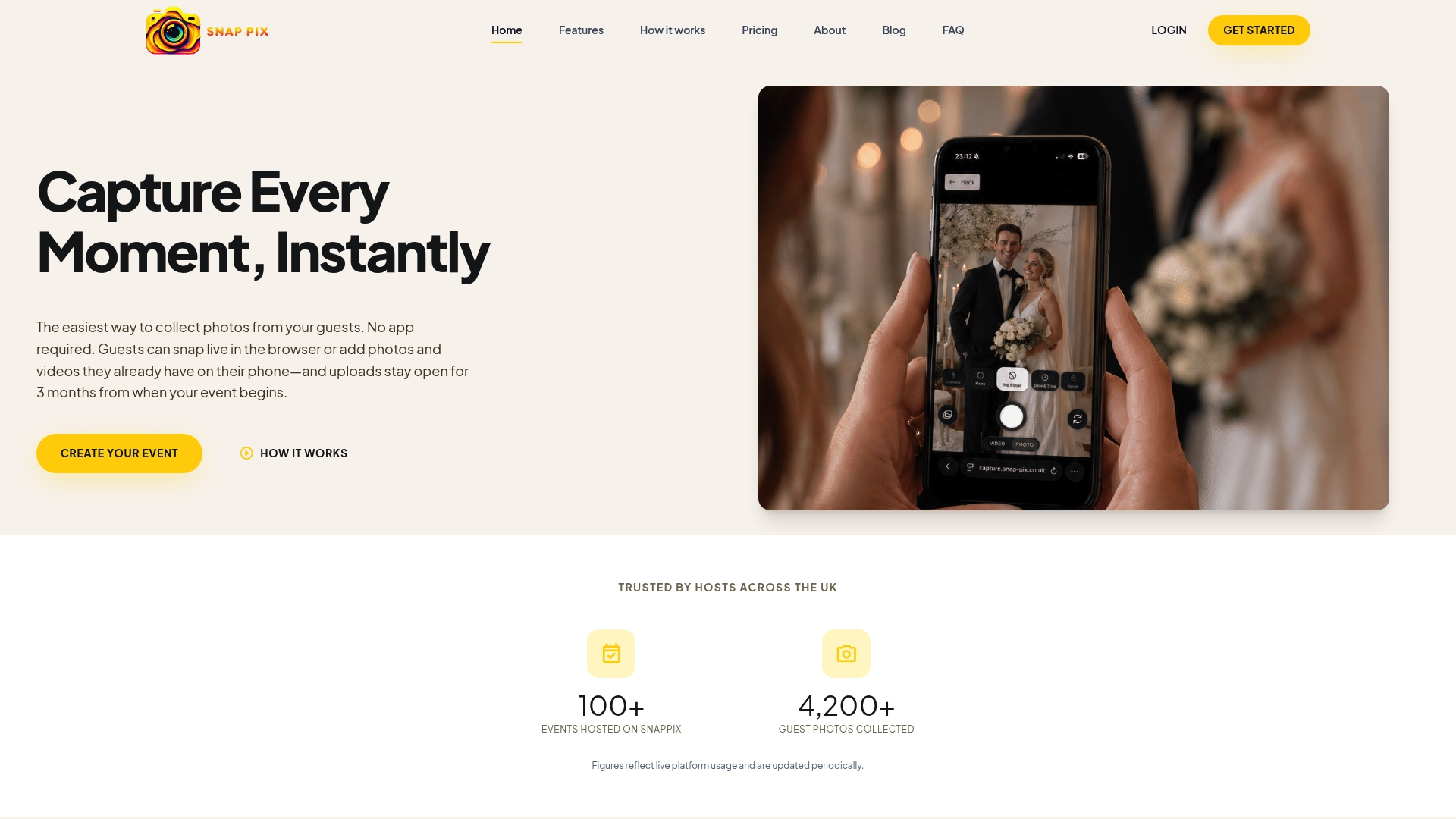
Full Event Access costs £14.99 as a one-off per event on the SnapPix pricing page, or hosts can start with the Free plan to try the flow first. For consent templates suited to school and youth events, TrailMark’s photo consent guidance is a useful companion resource.
Tapping Block simply tells the browser to remember “no” for that site, so the camera won’t load until you change it. Tap the lock or site-info icon beside the address bar, switch Camera to Allow, and refresh the page as Chrome’s guidance describes.
Your browser and your operating system each hold their own camera permission, and both need to say yes. Apple’s support documentation notes that macOS can block a browser even after you’ve allowed it on the site, so check System Settings ▶ Privacy & Security ▶ Camera as well.
No, permissions can be reset if a site hasn’t been visited in a while, so you might see the prompt again later in the same event. This is expected and simply means the browser wants fresh confirmation, not that something has gone wrong.
Yes, platforms like SnapPix let guests upload existing photos from their camera roll via a QR code, which avoids the live camera prompt entirely. This works well as a fallback for guests who prefer not to grant browser camera access during an event.
If the event page isn’t loaded over HTTPS, some browsers will refuse to trigger the camera prompt in the first place, as Google’s troubleshooting notes point out. Hosts should confirm their capture link uses HTTPS before sharing it with guests.

Event hosts' practical guide to posed and candid photos: perception research, hands on shooting tips, and no app guest uploads to boost candid coverage.

Which event technologies are production ready for 2026 and how to adopt them with clear consent, governance, and a no app QR photo pilot.

Which routes keep EXIF or strip GPS? Quick checks to view or remove metadata, plus a three month workflow to collect guest photos.