How to Control Event Gallery Access and Expiry
SnapPix TeamPublished 2 Nov 202627 min read

You control an event gallery by deciding three things: who can get in, who can add photos, and how long it stays online. With SnapPix, guests scan your QR code with their phone camera and it opens in their browser, with no app to download and no account to create. Your QR code carries a private event password, so only people you give it to can get in. There’s nothing for guests to type.
This guide walks you through each control in plain steps, explains what “expiry” means (it is not one thing), and shows what to do before your gallery closes so you keep every photo.
Most hosts think of “access” as one switch. In practice it is three separate questions, and it helps to answer them in order.
Keeping these apart saves confusion later. A gallery can stop accepting new photos and still be fully viewable. That is normal, and it is by design.
Start with the people. Write a rough list: the couple or host, the guests, perhaps the photographer or venue, and relatives who couldn’t make it.
The simplest approach is the QR code. Guests scan your QR code with their phone camera and it opens in their browser, with no app to download and no account to create. Because your QR code carries a private event password, only people you give it to can get in. There’s nothing for guests to type, so you never have to read out a code across a noisy reception.
That design has a practical benefit. Nobody has to remember a login, and nobody can stumble into your gallery by guessing a web address. Whoever you hand the code to is who gets in.

The code works as well as the places you display it. Common spots for a UK wedding or party:
You can order printed QR place cards, table signs and entrance signs, posted to you. See the SnapPix features page for what’s included.
A tip on privacy: think about where the code will be seen. A card on a table inside the reception is seen by guests. A code on a public noticeboard is seen by everyone who walks past. For a private family event, keep it inside the room.
Guests who have joined can take photos and videos of up to 60 seconds in the browser, or upload from their camera roll. Everything lands in one private gallery you control.
Two limits shape contributions:
Both plans include everything else: photo challenges with a live leaderboard, the digital guest book, the optional Event Reel, the slideshow, Smart Albums, private share links and Google Drive backup. The password protection is the same on both. Details are on the pricing page.
How many guests can join? Unlimited guests, on either plan. So you never need to trim your audience to stay in control. The access control comes from the QR code, not from a guest cap.
Mobile signal in barns, castles and country houses can be patchy. Uploads wait on the phone if signal drops, then send when the guest is back online. This matters for access too: a guest who joined in the car park and photographed the whole evening still gets everything into your gallery.
Control is also about steering, not just locking. Photo challenges with a top-10 leaderboard nudge guests towards the shots you’d love, such as the first dance, the cake or the best table. Challenge albums collect the entries in one place. The digital guest book gives people somewhere to leave a message instead of only a photo.

If you want to look for particular moments afterwards, host-only AI Smart Albums let you describe what you want (such as “first dance” or “cake”) and SnapPix builds an album from matching photos. Only you see them.
Sometimes you need to show the gallery to someone who wasn’t there: a grandparent abroad, a florist who’d like to see the tables, a planner. You don’t want to hand them your QR code.
Use a private share link. You can give it an expiry date, so it stops working when you no longer want it open. This is the cleanest way to share with a limited audience for a limited time.
A few sensible habits:
For more on handling suppliers and photographers, see our guide on keeping vendor access secure, and for the wider picture, our secure event photo sharing guide for UK organisers.
People search for event gallery expiration and get a muddle of answers, because three different things share the word. Here they are side by side.
| Term | What it means | On SnapPix |
|---|---|---|
| Upload window | How long guests can add new photos | 3 months from the event start date |
| Hosting period | How long the gallery stays online to view | 12 months from the event date |
| Share link expiry | When a private link stops working | A date you choose when you create the link |
Notice what is not in the table: deletion on a surprise date. The upload window closing does not remove your photos. It only stops new ones arriving. The hosting period is the longer clock, and it is the one to plan around.
Say your wedding is on a Saturday in June.
Three different clocks, each doing its own job. Check the current terms on the FAQ and pricing pages whenever you plan, since the exact wording of any service can be updated.
A gallery that lives forever online is a gallery that someone has to keep safe forever. A fixed window keeps things tidy and limits how long your photos sit on a server. For one-off celebrations, that is usually what hosts want. Our article on temporary photo sharing goes deeper on why short-lived galleries suit most events.
Hosting is for sharing and enjoying photos. It is not your archive. Make your own copy well before the 12 months are up, and preferably soon after the event.
Wait until the upload window has closed if you want to be sure every late contribution is in. Guests often upload holiday-style batches weeks after a wedding, so a second download in the final month of the window picks up the stragglers.
A gallery of your own celebration is personal, and the UK’s data protection regulator says the law doesn’t cover personal data used for purely personal or household activity. It also doesn’t stop people taking photos or videos for personal use. That is reassuring for a family party.
The same ICO page explains the difference between sharing privately and publicly. Posting to a private account seen only by friends or family is likely to count as personal use, while a public post may fall under data protection law. In plain terms, keeping your gallery private is the safest default, and it is how SnapPix galleries start.
Some practical manners to go with that:
This is general guidance, not legal advice. If you run a larger or workplace event and aren’t sure what UK GDPR asks of you, speak to your organisation’s data protection lead or read the ICO’s guidance for small organisations.
Some hosts livestream the ceremony for relatives abroad or record a toast. The ICO’s advice for organisations is that you need a clear purpose for recording, and should tell attendees why and how long it is kept. Whenever you share things online, it also pays to understand the trust and security checks that reputable online services put in place.
Run through this a week before your event:
Our guide to hosting an event gallery without an app covers the hosting side in more depth.
We built SnapPix after our own wedding, and the lesson we took from it was simple: guests will happily share photos, but only if it takes seconds, and hosts will only relax if the gallery is private.
That’s why the QR code does two jobs. It gets guests in with one scan, and it carries the private event password, so you never have to manage logins or print codes for people to type. Nobody downloads an app. Nobody makes an account.
We also think expiry should be easy to understand. Guests get 3 months from the event start to add photos. The gallery is hosted for 12 months from the event date. Private share links have their own expiry date. Three clocks, each with one job.
And we’d always ask you to keep your own copy. Download your ZIP after the event and connect Google Drive. Then your photos are yours, wherever they live.
Liam
Every SnapPix event starts on the Free plan: £0, no card needed, 10 uploads per guest. If you want guests to share without a cap, Full Event Access is £14.99 one-time per event, with unlimited uploads and up to 50 AI illustrations, and no subscription. Both plans include everything else, from photo challenges to private share links and Google Drive backup.
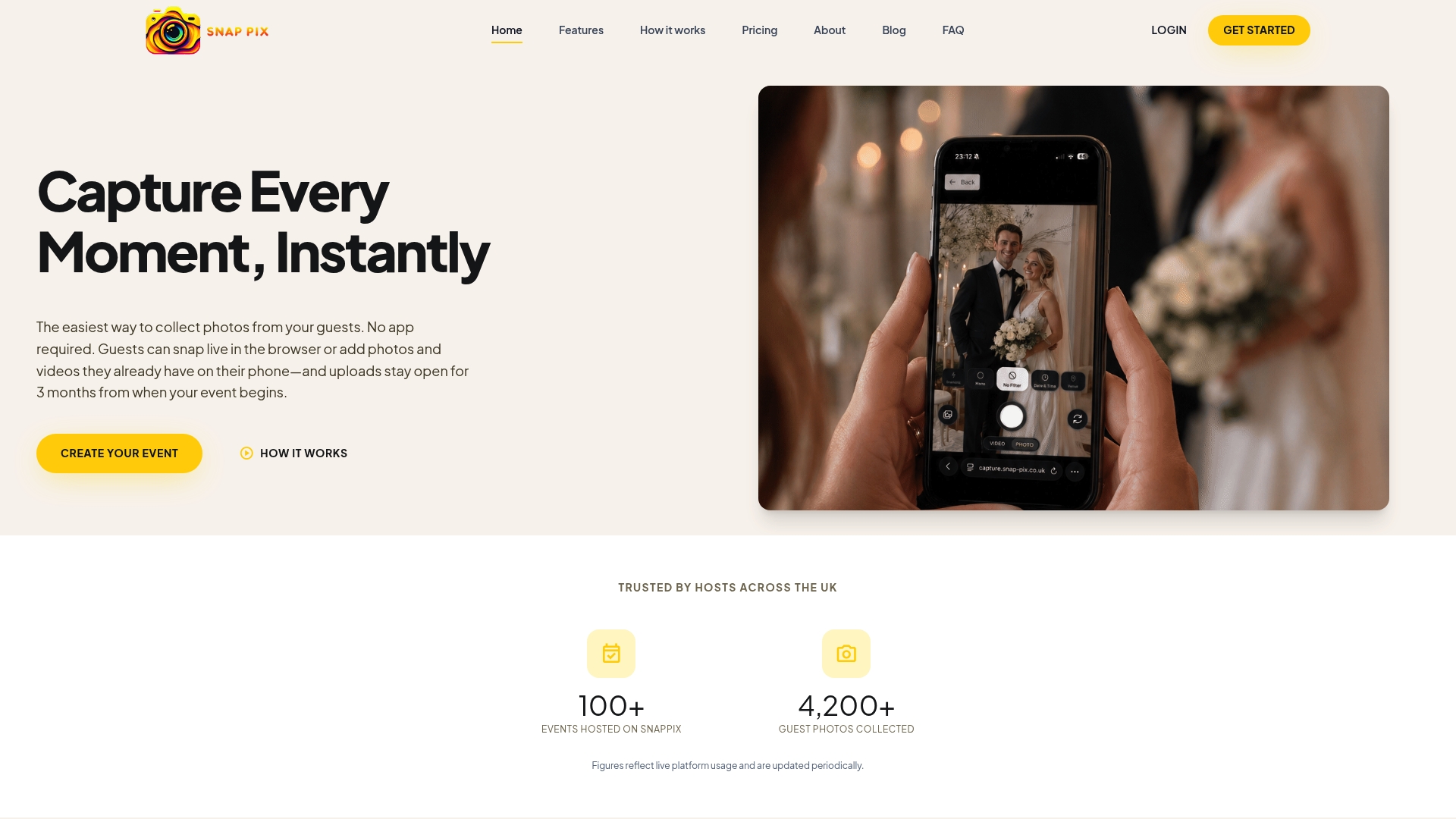
You can set up your event in under a minute. See the plans and pricing or head to the SnapPix home page to begin.
Galleries are private by default, and your QR code carries a private event password, so only people you give it to can get in. Treat the QR code and any private share link like a house key: give it to the people you trust, and don’t post it publicly.
Guests can add photos for 3 months from the event start date. After that, no new uploads arrive, but the gallery is still hosted for 12 months from the event date, so you and your guests can keep viewing it.
Yes. Private share links have an expiry date, so you can give a supplier or relative access for just as long as they need it. Once that date passes, the link stops working, while your main gallery carries on as normal.
Download your ZIP after the event and connect Google Drive. Both come with the Free plan and Full Event Access. Then you hold your own copies and don’t depend on the hosting period at all.

Simple ways to capture birthday party memories, from guest photos and messages to keepsakes you will actually look at again, with tips for children's photos.

What limits apply to guest photo uploads at a UK wedding or party? Per-guest caps, video length, upload windows and hosting time, with a simple way to plan.

Event photo display ideas for weddings, parties and reunions: printed boards, guest book tables, a live slideshow and a photo wall, plus venue tips.