Event Hosts Keep Control and Curation With No App Galleries
SnapPix TeamPublished 7 Oct 202622 min read

The best way to host an event gallery is to share a browser-based link or QR code that lets guests upload directly, while you keep moderation and final curation in your own hands. Test the upload flow before the event, set a clear retention window so guests know how long they can access photos, and you will avoid most of the headaches that catch hosts out.
TL;DR:
- Most platforms prioritize no-app uploads, moderation, and defined retention periods to ensure seamless guest contributions and easy management.
- Testing the upload flow, signage, and connectivity at the venue before the event prevents common technical issues and streamlines guest participation.
- Batch reviewing and moderating uploads after the event improves workflow and prevents distractions during the live session.
- Using a platform that queues uploads during connection drops ensures most photos are saved despite poor signal.
- Controlling gallery access via link resets or disabling collaborative uploads is crucial to manage privacy and unwanted contributions effectively.
Before the first guest arrives, a few things need to be locked in. Run through this list in the final week before your event so nothing gets left to chance.
Working through this list takes less than an hour and removes almost every last-minute surprise that comes from assuming the tech will just work on the day.
Three broad options exist, and picking the right one depends on how much control you want to keep. Shared albums through a photo app are the simplest starting point: guests who already have an account can add photos with no extra setup, but privacy controls are limited and some guests get stuck at the login screen.
Browser-first QR upload platforms remove that friction entirely. Guests scan a code, upload from their camera roll or shoot directly in the browser, and you retain moderation and retention settings on the back end. Photographer-managed galleries sit at the other end: you get professional sequencing and a polished final product, but candid guest contributions drop off because there is no easy way for anyone else to add to it.
When you are comparing tools, prioritise four things: no-app upload, moderation controls, a defined retention period and decent download quality.
Pro Tip: If you only remember one rule, pick the platform that lets guests contribute without installing anything. Every extra step loses you photos.

Getting this right ahead of time is what separates a smooth gallery from a stressful one. Work through these steps in order.
A short checklist like scanning the QR code, uploading a test photo, viewing it in the gallery and removing it again, on both major phone operating systems, catches most problems the complete guide to live event galleries recommends running before guests ever arrive. Our QR code guide for guest uploads walks through generating and testing codes in more detail.
Once the event starts, your job is to make the gallery visible without making it a distraction. Place the QR code somewhere obvious and mention it once or twice during natural pauses, such as a speech break or the start of the meal. Repeating the prompt constantly tends to feel intrusive rather than encouraging.
Hosts who avoid real-time monitoring and instead batch their review afterwards tend to protect their own workflow far better, a point the live event gallery guide makes clearly.
Pro Tip: Brief the MC or a trusted guest to mention the QR code so you never have to break focus to do it yourself.

The curation work after the event is where a messy pile of guest snaps becomes something worth sharing. Keep this pass light and quick rather than trying to perfect every image.
Our guide on organising event photos covers sequencing and delivery in more depth, and if video is part of the brief, this piece on combining photo and video coverage is worth a look before you plan the shoot day.
Who can see and add to your gallery matters as much as who takes the photos. Link sharing is the fastest option for guests, collaborative albums let people add their own shots, and password protection adds a layer when the event involves sensitive moments. Choose based on how open you want the gallery to be.
Shared album controls let owners turn link sharing on or off, decide whether collaborators can add media, and reset share links to cut off access, according to Google Photos’ own documentation. The same principles apply whichever platform you choose, including how to stop sharing an album once you want it closed for good. Keep a private archive copy for yourself and only publish a trimmed preview if the client wants wider sharing, and agree with clients upfront how any images might be reused elsewhere.
Connectivity issues are the most common reason guest photos go missing, so test for them rather than hoping for the best. A short site visit to check cellular and Wi-Fi coverage before the event tells you exactly what you are dealing with.
Developer references for tools like the Google Photos Library API show that shared albums already expose share tokens and joinable states behind the scenes, which is exactly the kind of mechanism that lets a good platform queue and retry uploads without you having to intervene.
Guest photos add texture and honesty that a single photographer can never fully capture, but they do not replace a curated narrative. The best event galleries we have seen keep a professional sequence as the backbone and let guest contributions fill in the gaps around it.
If you offer gallery management as part of your service, position it as a client-facing add-on rather than an afterthought. Clients notice the difference, and it gives you a reasonable basis to negotiate a small fee or offer a paid extension on hosting once the standard window closes.
— Liam
We built SnapPix around the exact workflow this guide describes: guests scan a QR code, upload straight from their browser with no app or account needed, and we keep moderation and curation entirely in your hands.
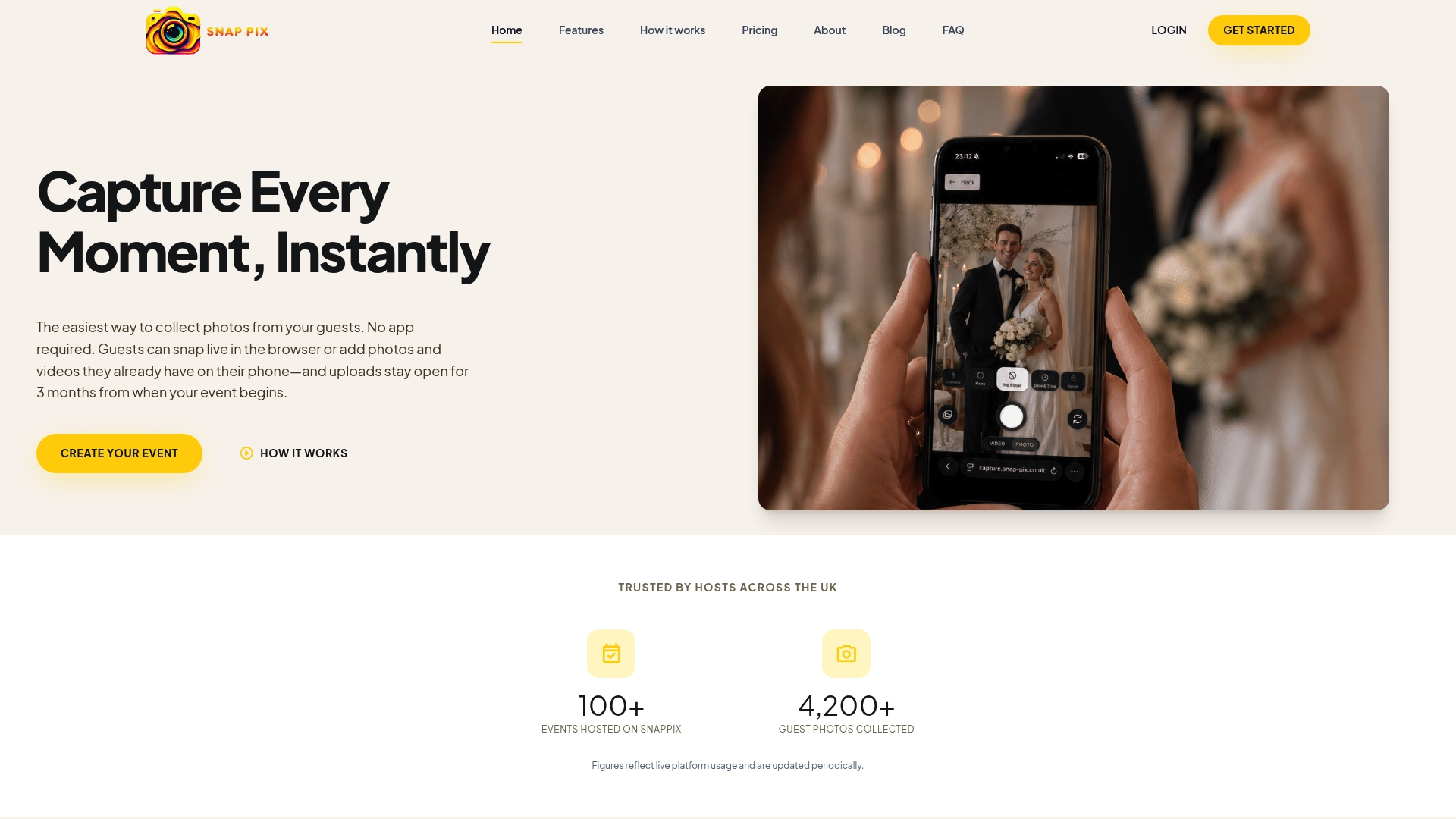
We charge a one-time fee per event rather than a subscription, so there is nothing ongoing to manage once the gallery is live. Full Event Access costs £14.99 one-off per event, and a Free plan is also available if you want to try the workflow first. Our features page covers the guest book, password protection and challenge tools in full, and our introduction to no-app QR galleries is a good starting point if you want to see the guest experience before you activate your first event.
No. A browser-based gallery like SnapPix lets guests scan a QR code and upload directly from their camera roll or browser, with no app or account required.
This depends on the platform and plan you choose. SnapPix galleries remain accessible for three months after the event, giving guests plenty of time to download their photos.
Most platforms let you turn off collaborative uploads or reset the shareable link entirely, which revokes access for anyone holding the old link. This is the quickest way to close a gallery to new contributions without deleting what has already been added.
It is better not to. The live event gallery guide recommends batching your review after the event so you can focus on shooting rather than checking a feed throughout the day.
Test the venue’s signal in advance and plan for batch uploads during natural breaks, or keep an attendant device or portable hotspot on hand as a backup. A platform that queues uploads automatically when the connection drops will recover most submissions once signal returns.

Event hosts' practical guide to posed and candid photos: perception research, hands on shooting tips, and no app guest uploads to boost candid coverage.

Which event technologies are production ready for 2026 and how to adopt them with clear consent, governance, and a no app QR photo pilot.

Which routes keep EXIF or strip GPS? Quick checks to view or remove metadata, plus a three month workflow to collect guest photos.