Fundraiser Photo Sharing for Hosts: No App QR Uploads, Live Slides
SnapPix TeamPublished 21 Sept 202623 min read
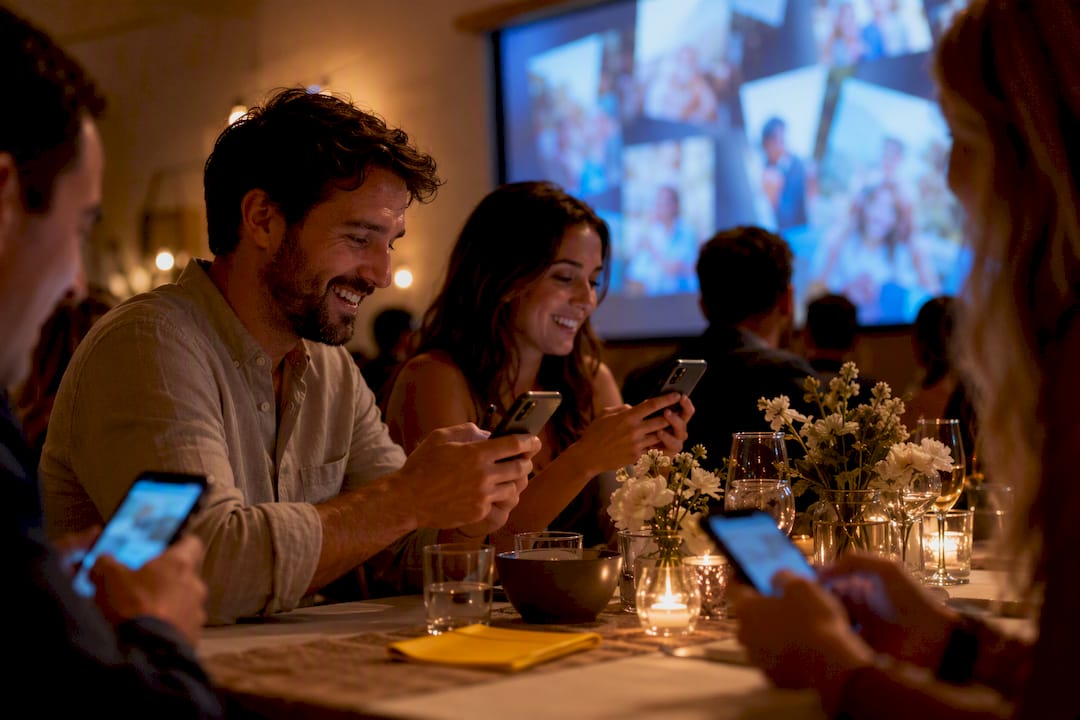
A browser-based QR gallery is the fastest way to collect fundraiser photos without asking a single guest to install anything. Print a QR code, place it where guests naturally gather, and every phone camera becomes an upload tool. Add a live slideshow and clear moderation, and you turn scattered candid shots into a gallery you can download and reuse for newsletters, social posts, and next year’s invitation.
TL;DR:
- QR code placement at key points like entrances, tables, and display areas increases scan rates, especially when paired with clear instructions and testing under venue lighting.
- Regularly changing photo prompts and displaying live slideshows encourage continued guest participation throughout the event.
- Clear signage and short consent lines ensure proper photo sharing permissions, while moderation controls keep galleries appropriate and enhance guest trust.
- Downloading and organizing photos post-event requires filtering, tagging, and verifying consent to maximize value for future promotion and outreach.
- No-app browser uploads eliminate friction, enabling higher participation compared to app download methods, vital for volume and engagement at fundraising events.
Guests scan a printed or on-screen QR code with their phone camera. That opens a web page in their browser, no app store, no login, no account required. They tap to upload photos already in their camera roll or take new ones on the spot, and the images land straight into your private gallery.
The sequence is simple:
The main limitation is dependent on mobile signal. A weak venue connection can slow uploads, so test the process on-site beforehand. Most platforms also let you switch on video uploads, captions, and a moderation queue, so you decide what goes public before a single image reaches the nonprofit event photo sharing gallery guests see.
Placement decides whether your QR code gets ignored or gets scanned. Guests need to see it, understand it in two seconds, and have a reason to act.
Contrast and size matter more than design flair. A code smaller than 5cm square, or printed on a dark, glossy card, often fails to scan under venue lighting. Pair it with a short instruction such as “Scan. Snap. Share your night” rather than a generic “Photos here.”
Pro Tip: Test your printed QR code on three different phones, in the actual room, at the lighting level you’ll use on the night. A code that scans fine on your desk can fail under dim event lighting or from three metres away.
Announce the code from the stage once early in the evening and again after the meal. A verbal nudge at the right moment often outperforms signage alone.
Getting guests to scan once is easy. Getting them to keep uploading through the whole event takes a bit of engineering.
Photo consent is not optional paperwork, it’s what protects your organisation and your guests. Handle it properly and nobody has an awkward conversation after the event.
None of this needs to be complicated. A single sentence on the upload screen and a printed line on your signage covers most of it, and it builds trust with guests who might otherwise hesitate to upload at all.
The photos are only useful once they’re organised. Curate before you distribute anything publicly.
Good photo fundraisers often generate content that outlasts the event itself, from thank-you emails to next year’s save-the-date graphic. Treat the download step as the start of your marketing pipeline, not an afterthought.
Run through this before doors open, and again once the event is underway.
Pro Tip: Assign one volunteer to watch the moderation queue during the event rather than leaving it until the next morning. Approving photos live keeps the slideshow fresh and stops a backlog building up.
SnapPix was built around exactly this workflow: a guest scans a QR code, their browser opens an upload page, and no app or account stands between them and sharing the moment. That single design choice removes the friction that stops most people bothering to contribute at all.
Across events run on the platform, SnapPix has collected over 4,200 guest photos, a reflection of how much guests will contribute once the barrier to entry disappears.
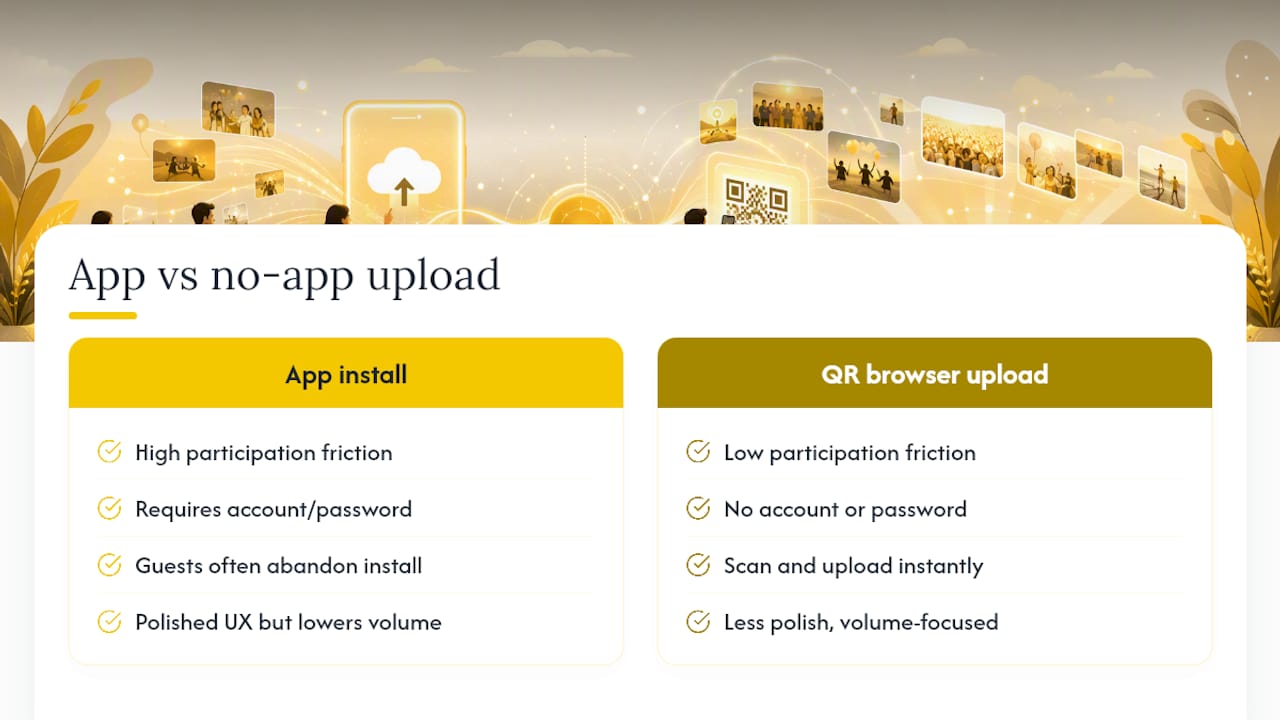
Every fundraiser organiser has watched a guest give up halfway through an app install because the venue Wi-Fi stalled or the app store asked for a password nobody remembers. That friction kills participation long before anyone takes a bad photo of the raffle table.
A browser-based QR upload sidesteps the entire problem. There’s no account to abandon, no app to delete afterwards, and no reason for a guest to hesitate before scanning. The trade-off some organisers worry about, losing the “polish” of a dedicated app experience, rarely matters at a fundraiser where the goal is volume and warmth, not slick production. What actually moves the needle is visible signage, a live slideshow that rewards contributors instantly, and moderation that keeps the feed appropriate without slowing anyone down.
— Liam
SnapPix removes the single biggest barrier fundraiser organisers face: guests who won’t download an app for a one-night event. Every feature covered in this guide, no-app QR uploads, moderation, AI smart albums, and photo challenges, comes included, so you’re not stitching together separate tools on event day.
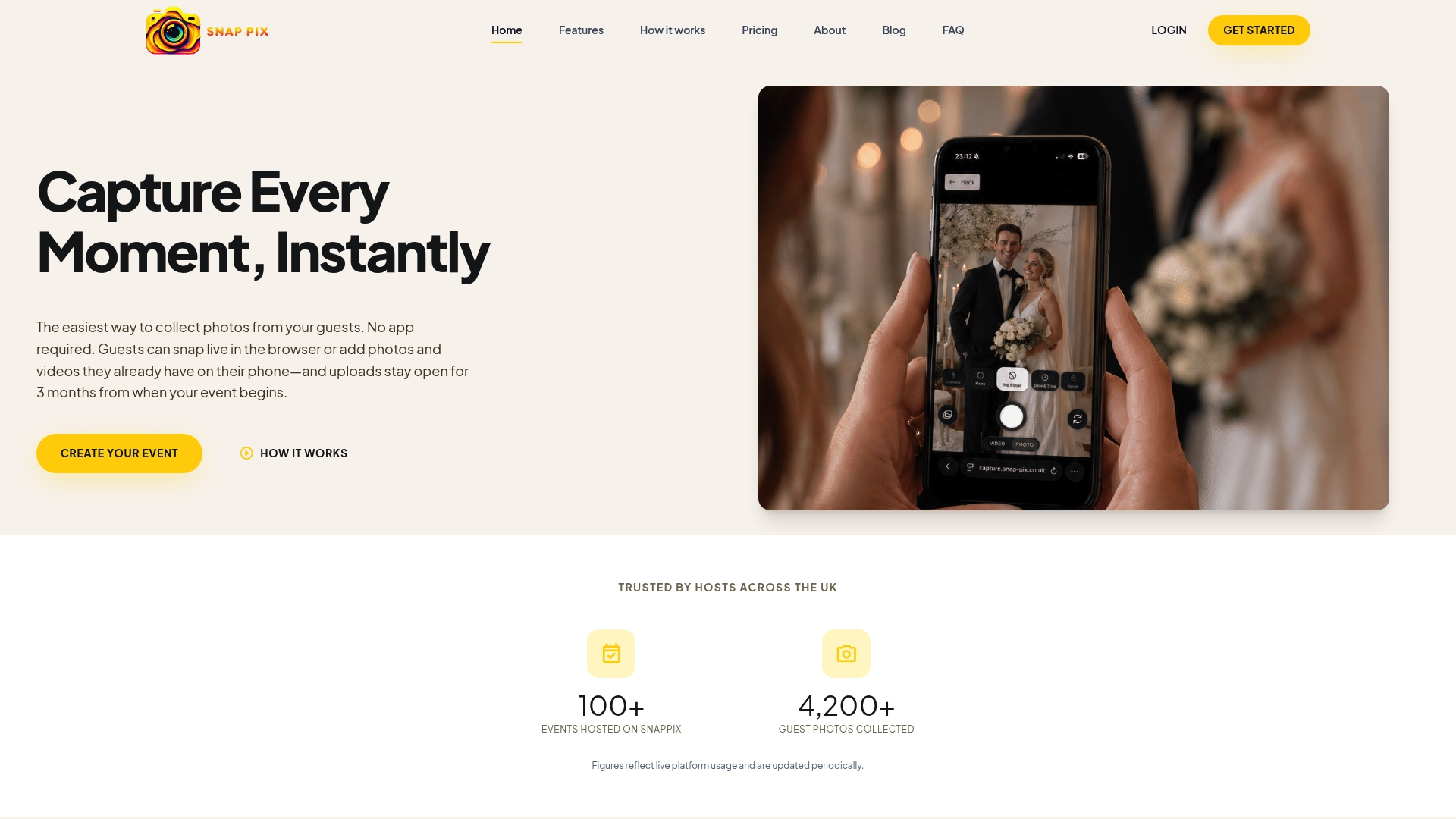
Full details on how uploads, galleries, and guest books work sit on the SnapPix features page, including how the moderation queue and AI albums behave once photos start arriving. When you’re ready to run your own event, activate a gallery on the pricing page, where Full Event Access is a one-off £14.99 per event, or start with the Free plan to test the workflow before your next fundraiser. Set your QR code, brief one volunteer on moderation, and you’re ready before guests arrive.
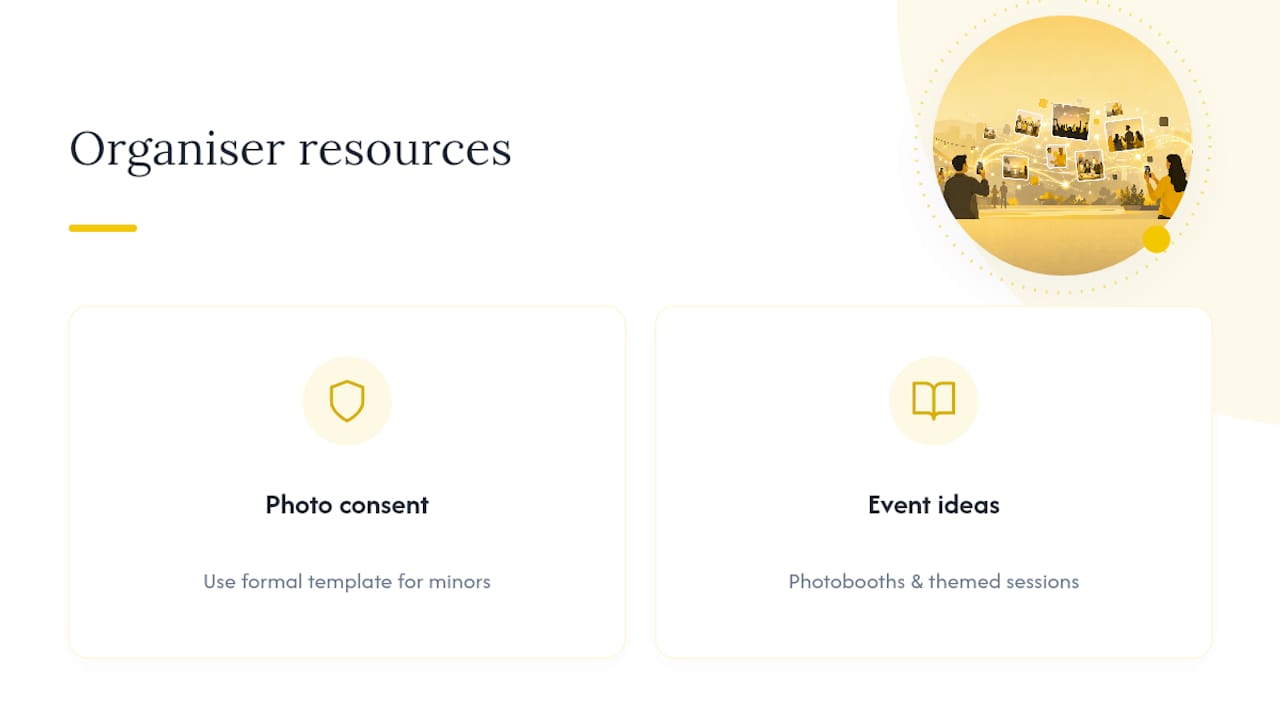
If minors will appear in your photos, use a proper photo consent template rather than improvised wording, particularly for school or youth fundraisers. For broader event ideas beyond photo collection, Silent Auction Pro’s guide to hosting photo fundraisers covers photobooths and themed sessions worth pairing with your QR gallery.
The best option for a group event is a browser-based QR gallery, since it needs no app download and works on any smartphone camera. Look for one offering moderation, a live slideshow, and AI-sorted albums, features that some platforms include as standard for events like weddings, galas, and fundraisers.
A photo fundraiser typically takes one of two forms: guest photo collection, where attendees upload their own shots via QR code, or paid portrait sessions, where a photographer sells prints or digital copies. Many organisers combine both formats to boost engagement and raise extra funds in one event.
Bulk-sharing hundreds or thousands of photos works best through a shared online gallery with a download-all option, rather than emailing individual files. QR-based platforms let every guest upload directly, so the gallery builds itself throughout the event instead of you collecting files afterwards.
Sending a private gallery link is faster and more reliable than emailing or messaging large batches of files, which often get compressed or rejected by file-size limits. A gallery link also lets the recipient browse and download only the images they want, in full resolution.
Upload windows vary by platform, but SnapPix keeps galleries open for three months after the event, giving guests plenty of time to add photos they forgot on the night. Check your chosen platform’s retention policy before the event so you can communicate the deadline clearly to guests.

Secure sponsor access to event photos with a host controlled workflow. Use time limited QR links, view only tokens, instant revocation, and access logs.

A practical host first workflow: collect no app QR uploads, keep moderation and professional curation, set retention and backup plans so you stay in control.

Event hosts' practical guide to posed and candid photos: perception research, hands on shooting tips, and no app guest uploads to boost candid coverage.