In 20 Minutes: Set Up Guest Camera Roll Uploads for Event Hosts
SnapPix TeamPublished 25 Sept 202627 min read

Yes, guests can upload photos and videos straight from their phone camera roll by scanning a QR code that opens a browser upload page, no app needed. This is the fastest way to collect real guest photos without chasing anyone for downloads or logins. The best approach is a purpose-built event gallery platform like SnapPix that generates a QR code, accepts multi-file camera-roll uploads, and organises everything automatically once uploads start rolling in.
TL;DR:
- Using a purpose-built platform like SnapPix allows guests to upload multiple photos and videos directly from their camera roll via a QR code, without needing an app or login.
- Testing the QR code with low Wi-Fi signal and at the venue before the event ensures smooth scanning and avoids failures caused by slow or cropped codes.
- Setting a privacy-protected gallery with a clear retention period and informing guests about photo use helps maintain security and privacy of uploaded content.
- Displaying the QR code in highly visible areas and projecting a live slideshow during the event significantly increases guest participation and photo submissions.
- A well-designed upload page should be lightweight, compatible with Safari and Chrome, and support resuming uploads after connection drops to minimize technical failures.
The mechanism is simpler than most hosts expect. A QR code is just a shortcut to a web link, and that link opens a mobile upload page in whatever browser the guest already has open, Safari on an iPhone, Chrome on Android. There’s no download screen, no app store detour, no account to create. The guest points their camera at the code, taps the notification, and lands on a page built specifically to accept photos and videos from their camera roll.
A properly built upload page needs to do a few things well. It has to allow multi-file selection, so a guest can pick twenty photos from the dance floor in one go rather than uploading them one at a time. It needs to accept video as well as stills, and it should preserve original or near-original quality rather than compressing everything into something unusable for prints later. Web-based no-app services can preserve full resolution across both iPhone and Android without asking anyone to install anything, which is exactly the behaviour hosts should expect from a well-built platform, as ShareThePic demonstrates.
Good platforms also give guests instant feedback. That usually means:
That last point matters more than hosts realise. An event isn’t over when the lights come up. Guests often don’t upload their best shots until days later, once they’ve had a chance to look through their camera roll properly, which is why the retention window on your chosen platform deserves real attention rather than an afterthought.
Getting this right takes about twenty minutes of preparation, most of it well before the event itself. Rushing it on the morning of the wedding is how QR codes end up printed with the wrong link.
Pro Tip: Test the QR code on a phone with low signal or one bar of Wi-Fi, not just on your home broadband. Venues are notorious for patchy reception, and a code that scans instantly in your kitchen can time out completely in a marquee with thick stone walls nearby.
Assign that helper a second job too: keeping half an eye on the live slideshow. If nothing new has appeared in fifteen minutes during the reception, that’s your cue to make an announcement.

From the guest’s side, the whole process typically takes a very short time once they’ve decided to participate. The flow runs like this:
The one snag worth pre-empting is the browser permission prompt. Some phones ask guests to confirm access to photos before the picker opens, and a guest unfamiliar with this can assume something’s gone wrong. A single line on your signage, “tap allow if your phone asks for photo access”, removes almost all of that hesitation.
Video is the other variable. A thirty-second clip from a modern phone can run to several hundred megabytes, and uploading that over patchy mobile data takes real time. If the venue has guest Wi-Fi, put the network name and password on the same card as the QR code. Once the upload finishes, guests should see something concrete, a thumbnail, a thank-you message, or their photo appearing on the live slideshow, because that visual payoff encourages further uploads.
Most upload failures trace back to the same handful of causes, and nearly all of them are avoidable with a bit of testing before doors open.
Vendor guidance on lightweight mobile uploaders consistently points to the same conclusion: a page built to mimic a simple, familiar “tap upload, select photos” flow performs far better on small screens than one adapted from a desktop layout, as EasySend’s approach to photo sharing illustrates. Resume behaviour matters too. If a guest’s connection drops mid-upload, a well-built page should let them pick up where they left off rather than forcing a restart from scratch.
A QR code is convenient precisely because anyone can scan it, which is exactly why access control needs thinking through before you print a single card. The fix isn’t complicated, but skipping it is the most common privacy mistake hosts make.
Checking a platform’s own privacy documentation before you commit is worth the five minutes it takes. Clear, published privacy practices are one of the better signals that a vendor takes guest data seriously, as Microsoft’s Clarity documentation shows for web tools generally. If a gallery platform can’t explain its own data handling in plain language, that’s a signal worth noticing.
Wedding-industry guidance backs this pattern consistently: visibility drives participation, and hosts who pair a QR code with a live slideshow or clear table signage see noticeably higher guest engagement, according to The Knot’s coverage of QR codes for wedding photos.
The single biggest mistake hosts make isn’t technical, it’s placement. A QR code tucked into a corner of the seating chart gets scanned by nobody. The same code projected on a screen during dinner, with a live feed of photos appearing behind it, gets scanned by half the room within the hour. Visibility beats almost every other variable.

Native phone sharing tools tempt hosts because they feel familiar, but shared photo libraries built into iPhones and Android devices weren’t designed for this job. iCloud’s shared library can auto-add photos when people are near each other, but it offers no always-on, multi-guest upload flow for a room full of mixed devices, as MacRumors explains in its breakdown of iCloud Shared Photo Library. That’s the gap a dedicated browser upload page closes.
Our default recommendation for most events is a password-protected gallery with a retention window measured in months rather than days, and a slideshow refreshed every few minutes rather than left static. Guests upload more when they can see the payoff immediately.
— Liam
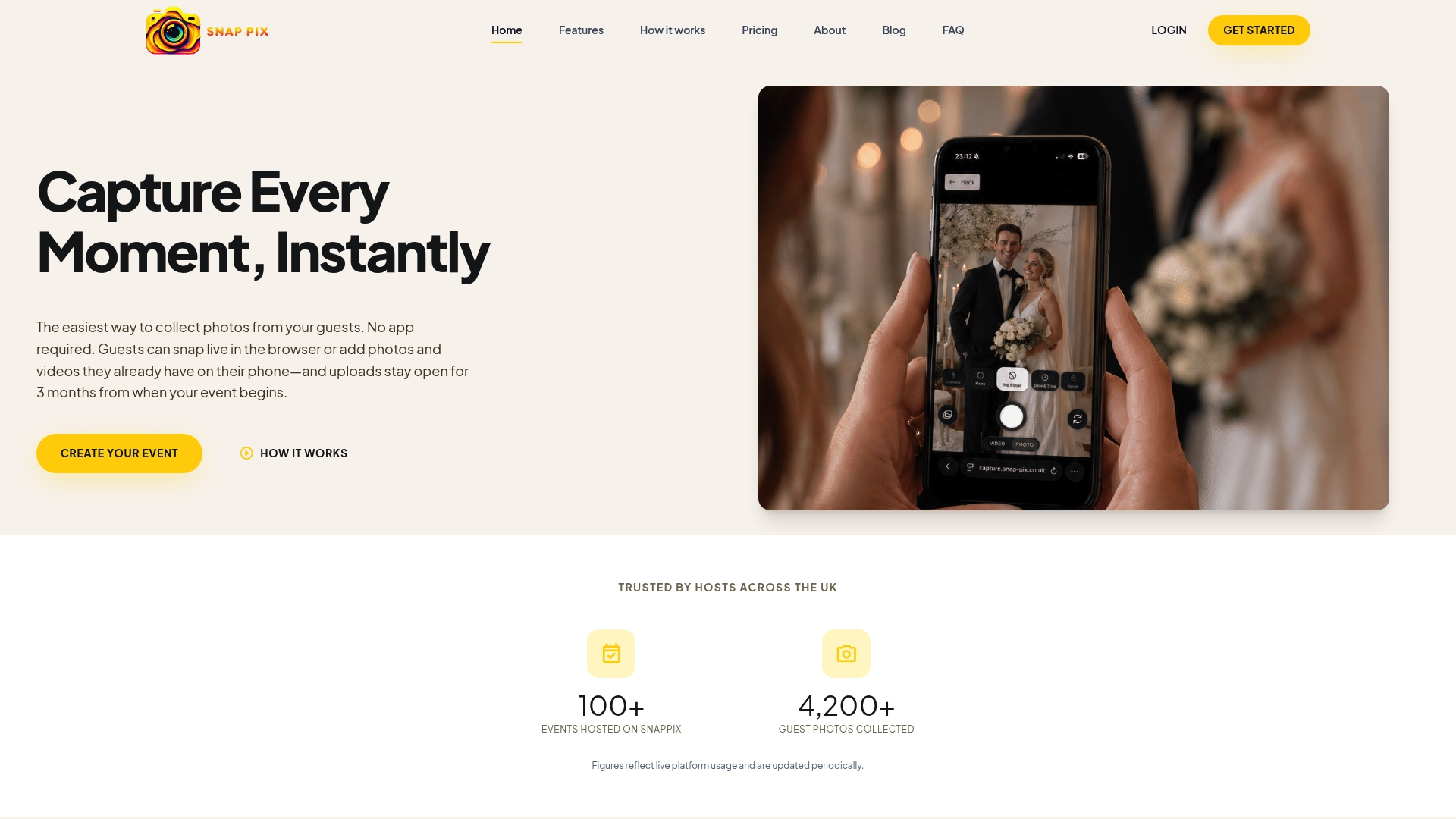
SnapPix removes the friction that stops guests from bothering to share their photos at all. There’s no app to download, no account to create, just a QR code that opens straight into a browser upload page built for camera-roll multi-file selection, exactly the flow described throughout this piece.
The features map directly onto what this article recommends: a shareable QR gallery link, a three-month upload window so late photos still find their way in, AI-driven smart albums that sort the flood of uploads automatically, a live slideshow to keep guests engaged on the day, and password-protected galleries as standard rather than an upsell. Photo challenges are built in too, useful for exactly the kind of participation nudge covered above. You can see the full feature set on the SnapPix features page.
Pricing runs on a one-time event activation rather than a subscription, Full Event Access at £14.99 per event, with a free tier available if you want to test the flow first. For deeper detail on QR safety and setup, our guide to QR codes for guest photo uploads walks through the finer points. Create an event and generate your QR code in a few minutes to see how it looks before the big day.
Claims in this article about native sharing behaviour, upload flows, and quality preservation draw on documented platform behaviour rather than assumption. Google’s own guidance on shared albums and link sharing confirms how non-app users can still view or receive shared media. For deeper technical detail on QR-based event workflows, Dojo Track’s guide to QR check-in systems covers integration-first approaches worth reading alongside this piece.
Generate a QR code linked to an event gallery, print it on table cards or signage, and guests scan it to open a browser upload page where they select photos directly from their camera roll. Platforms like SnapPix handle this with no app required and a three-month upload window for latecomers.
Most event gallery platforms, including SnapPix’s free tier, generate a QR code automatically when you set up an event, no separate QR generator needed. The code links directly to your gallery’s upload page, and you can download it as an image to print or display.
You can share individual photos via a messaging app, use a built-in shared library feature on your phone, or generate a link through a shared album service like Google Photos, which lets people without the app view shared media. For collecting photos from many people at once, a QR-linked upload page works better than any one-to-one sharing method.
Several no-app services offer free tiers for event photo collection, typically with a QR code, a shared gallery, and a limited or shorter retention window compared with paid options. SnapPix’s free plan follows this model, with the option to upgrade to Full Event Access for extended features and the three-month upload window.
No, a properly built no-app upload page never requires guests to sign up or log in. They scan the QR code, tap upload, select their photos, and confirm, all without entering an email address or password.

Secure sponsor access to event photos with a host controlled workflow. Use time limited QR links, view only tokens, instant revocation, and access logs.

A practical host first workflow: collect no app QR uploads, keep moderation and professional curation, set retention and backup plans so you stay in control.

Event hosts' practical guide to posed and candid photos: perception research, hands on shooting tips, and no app guest uploads to boost candid coverage.