Event Photo Sharing Without an App: Collect Photos by QR Code
SnapPix TeamPublished 11 Oct 202625 min read

The quickest way to collect guest photos without an app is a QR code that opens a browser upload page. Guests scan, tap, and upload straight from their camera or gallery, no account and no download required. We built SnapPix around exactly this flow, so hosts get a ready-made option rather than a project to engineer from scratch.
TL;DR:
- Offer both camera and gallery uploads, allow multiple file selection, and test the flow on iPhone, Android, and an older phone before the event.
- Print a short URL beside each QR code, place signs where guests pause, and test scans from across the room in low light.
- Use a branded HTTPS domain, inspect printed codes for tampering, and tell guests that uploads never require payment or login details.
- Weak venue connections can delay uploads, so provide the typed link, suggest saving large videos for later, and keep the upload page open until confirmation.
- SnapPix’s Full Event Access costs £14.99 per event, includes an upload window of three months and password protection, and has no recurring charges.
Every extra step between a guest and a working camera loses you photos. Downloading an app means finding it in a crowded app store, waiting for it to install, creating an account, and granting permissions, all while a toast is being made or a cake is being cut. Most guests simply skip it and keep their favourite shots on their own phone instead.
Storage space is tight on most phones, and nobody wants to install something they will delete tomorrow. App fatigue is real: people are wary of handing over contacts, notifications, or payment details for a one-off event. A browser page asks for none of that.
Practitioners building these flows directly report that QR and browser capture consistently drive higher event participation than app-based alternatives, simply because the friction disappears.
Before you choose a tool, check it covers the practical basics. These are the items that decide whether your gallery works smoothly or causes headaches afterwards.
These details matter because, as the FTC notes, a “no app” label alone says nothing about retention, quality, or whether you will still have access to your photos in three months. We cover our own answers to this checklist, including private gallery options, further down.
At its core, the flow is three steps: scan, upload, done. A short link points to your event’s upload page, the QR code is just a scannable version of that link, and guests never leave their browser.
Once a guest lands on the page, they are given two choices:
Short, clean URLs make a real difference to reliability. A long, messy link crammed into a dense QR code is harder for older phone cameras to read at a distance or in low light, whereas a short link generates a simpler, more scannable code. Keep your QR code free of extra text or logos overlapping the pattern itself.
A live gallery, projected on a screen near the dance floor or bar, turns this into a bit of a game. Guests see their photo appear seconds after uploading, which tends to prompt the next person to pull out their phone too. This kind of real-time feedback does more to build momentum through the evening than any amount of verbal reminders from the host.
Work through this list in the week before your event, then again on the day itself.
Pro Tip: Test your printed QR code from across a room, not just up close, since distance and lighting change how easily phone cameras pick it up.
Our wedding QR code guide walks through sizing and placement in more detail if you want a template to work from.
When a guest taps “take a photo,” their browser will usually ask for camera permission first. A quick line in your signage, such as “tap allow when prompted,” prevents confused guests from backing out at that point.
iOS and Android do not always behave identically. Some older Android browsers skip straight to a file chooser rather than opening the camera directly, and certain iPhone versions handle the “capture” attribute slightly differently depending on the browser used. Technical documentation on camera capture behaviour confirms that offering both a camera option and a gallery chooser gives the broadest compatibility across devices.
Treat your event QR code the same way you would treat any link you are asking people to trust. Use a branded HTTPS domain rather than an unbranded shortener, and physically test every printed code before the event to confirm it opens the right page.
The FBI warns that QR codes can be swapped or tampered with to redirect victims to phishing pages, so it is worth a quick visual check of printed signage for stickers or overlays that look out of place. Guests should never be asked to enter a password, card number, or banking detail on a photo upload page, and it is worth saying so plainly in your signage if you want to reassure anyone who hesitates.
The FTC’s consumer guidance confirms that QR-code scams typically work by hiding a harmful link behind a legitimate-looking code, which is why testing your own printed codes before guests arrive matters as much as the upload page itself.
Most problems on the night come down to connectivity, file size, or a venue full of people uploading at once. A little preparation avoids most of them.
A staffed upload station, even just one friend with a tablet near the bar, catches anyone who gets stuck and keeps the gallery filling up steadily through the night.
We built SnapPix specifically around the checklist above rather than bolting a QR code onto an existing app. Guests scan a code, land straight on a browser upload page, and choose between taking a photo or picking from their gallery, with no login required.
Across the events using the platform, over 4,200 guest photos have been collected through this flow, which gives a sense of how naturally guests contribute once the download step is removed.

Having watched this flow run at real events, I would set your expectations at a realistic level rather than a perfect one. Most guests upload within the first hour once a few people get the ball rolling, and a handful will always need a gentle nudge from a staffed fallback near the bar.
Run a short rehearsal on two different phones before the big day, and keep your signage instructions to one short sentence rather than a paragraph. Simple, visible signs do more work than anything printed in fine detail, and a quiet staffed station solves the rest.
— Liam
Everything covered above, no-login uploads, both camera and gallery options, a three-month window, password protection, and AI-sorted albums, comes built into Full Event Access, a one-off £14.99 per event with no recurring charges.
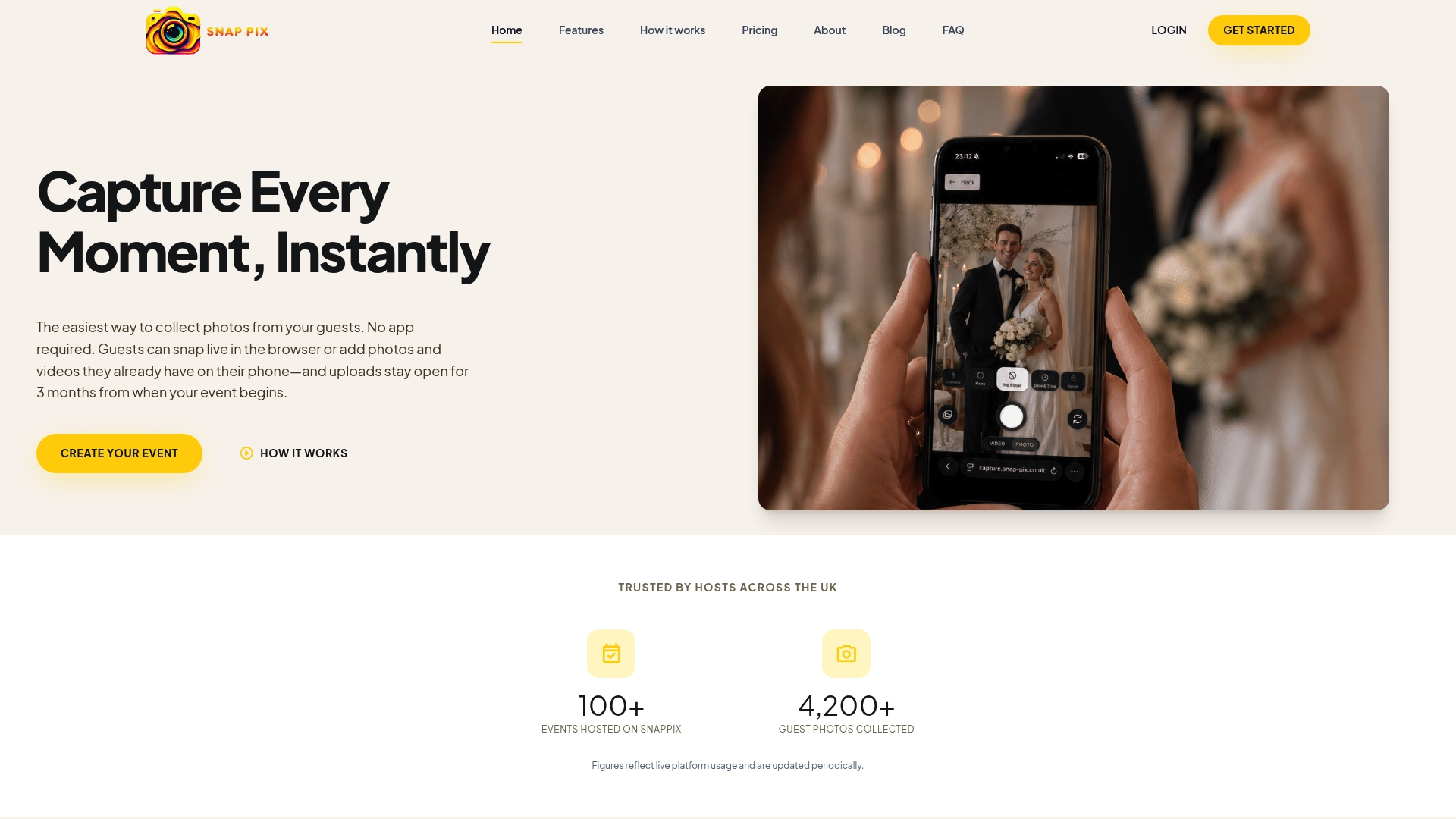
Set up your QR code today and let guests start uploading the moment they arrive.
Many hosts assume they need an app at all, but a QR code leading to a browser upload page avoids that step entirely while still producing a shared album. Guests upload directly from their camera or gallery, and the album builds itself in real time without anyone installing anything.
Shared photos sometimes fail to appear because of a weak connection at the moment of upload, a browser permission that was never granted, or an upload window that has since closed. Checking the upload page is still open and that camera or file access was allowed usually resolves it.
Flickr and Photobucket were among the best-known photo sharing sites of that era, both built around uploading images to a web page rather than a mobile app, since smartphones were not yet widespread. That same browser-first approach is exactly what modern QR-based uploads bring back for events.
This depends on your phone’s settings rather than the upload tool itself. On most devices, turning off auto-save for shared albums in your photos app settings stops new shared images from syncing into your main camera roll.

Set up event photo uploads before guests arrive with a no app QR gallery, guest prompts, and host moderation. Uploads resume when venue signal returns.

Set up a no app, no account shared gallery hosts can test quickly. Practical host checklist, COPPA privacy notes, upload prompts, and backup steps to...

Secure sponsor access to event photos with a host controlled workflow. Use time limited QR links, view only tokens, instant revocation, and access logs.