3 Month Host Workflow to Preserve Originals and Strip EXIF
SnapPix TeamPublished 4 Oct 202620 min read

Whether a shared photo keeps its EXIF data depends entirely on how you send it. Some routes, like messaging apps and social uploads, strip it out automatically. Others, like sending the original file or syncing through cloud libraries, can keep timestamps and GPS coordinates intact. The safest habit is simple: save the file you receive, check what it actually contains, and share a cleaned copy whenever privacy matters, while keeping your original safely tucked away.
TL;DR:
- Sharing photos through messages or social media often strips EXIF data, while sending original files or uploading to cloud services may preserve sensitive information like GPS coordinates.
- Different platforms automatically remove metadata in certain contexts, but testing your specific sharing route is the only way to ensure privacy.
- Checking metadata on a smartphone involves viewing info panels or downloading the file for detailed analysis with tools like ExifTool.
- Removing EXIF data before sharing, especially GPS coordinates, helps protect personal privacy, and batch tools like ExifTool simplify this process.
- Keeping original photos separate from sanitized copies and testing sharing methods prevents accidental exposure of sensitive information.
EXIF data is the hidden information your camera or phone attaches to every photo the moment you take it. Most people never see it, but it is there, quietly sitting in the file.
A typical EXIF block holds:
There are also related layers worth knowing about. XMP and IPTC are standardised metadata formats that can carry captions, copyright notes and keywords, while newer provenance systems like C2PA sign a file to show where it came from and whether it has been edited, according to EDUCAUSE’s overview of EXIF privacy risks. These layers do different jobs, but they share one risk: GPS coordinates are the single most sensitive field, since they can quietly reveal a home address, a workplace or a child’s school.
Not all sharing routes treat metadata the same way, and the differences matter more than most people realise.
Apple’s Shared Albums behave differently from an iCloud original: a shared copy may lose details that the source file still holds, according to analysis of iCloud Shared Album privacy behaviour. Google Photos separates camera-recorded and user-added locations, and partner sharing can expose location details even when your default settings have location sharing switched off, as Google’s own support documentation explains. Microsoft Teams has gone further, automatically stripping hidden metadata from photos shared in chats and channels, and pointing users towards OneDrive links when the original file needs to travel intact, according to a Microsoft Teams location data advisory.
Because behaviour varies by app, version and even by whether you are in a group chat or a one-to-one message, the only sure way to know what happens is to test it yourself, as explained in this media file security you can test in an afternoon guide. Send a marked file through the exact route you plan to use, then download the result and look inside it.
Checking what is hiding inside a photo takes less than a minute once you know where to look.
Pro Tip: Always check the downloaded copy, not the one still sitting in the app, since what you see on screen does not always match what travels with the file.
Deciding whether to strip metadata or leave it alone comes down to who is receiving the photo and what they genuinely need from it.
If you need to keep the original untouched for your own records, export it separately, or use a “send as file” option rather than “send as photo”, since the file route usually preserves the original bytes and everything attached to them. Renaming files before sharing is also worth doing. A filename that includes a date, a location or a person’s name can leak just as much as the EXIF data you just removed, so swap it for something neutral before it leaves your device.
Pro Tip: Keep one tidy folder of untouched originals and treat everything else as a working copy, so you are never tempted to sanitise the only version you have.
A few seconds of thought before sharing saves a lot of regret afterwards.
This separation between a private archive and a sanitised share is the habit that protects you long after the photo has left your hands. Our guide to private, no-app photo sharing walks through more ways to send photos without routing them through social platforms.
Collecting photos from a crowd of guests makes this harder, not easier, which is where a structured upload process helps. SnapPix lets guests upload photos through a QR code, with no app to install and no account to create, straight from a browser. Galleries stay password-protected and open for three months, giving hosts time to decide which images to sanitise and which originals to archive privately before sharing wider albums with guests. Our piece on temporary photo sharing for event hosts covers the workflow in more detail.

Keeping an untouched original and sharing a sanitised copy protects both your privacy and the photo’s history. Whichever app you use, test your exact sharing route before you trust it with anything sensitive.
— Liam
Weddings, parties and corporate events all bring the same problem: dozens of guests, dozens of phones, and no easy way to gather what they capture without handing over your contact details to a group chat. SnapPix solves this with a QR code guests simply scan, no app, no account, just a browser upload straight into a password-protected gallery.
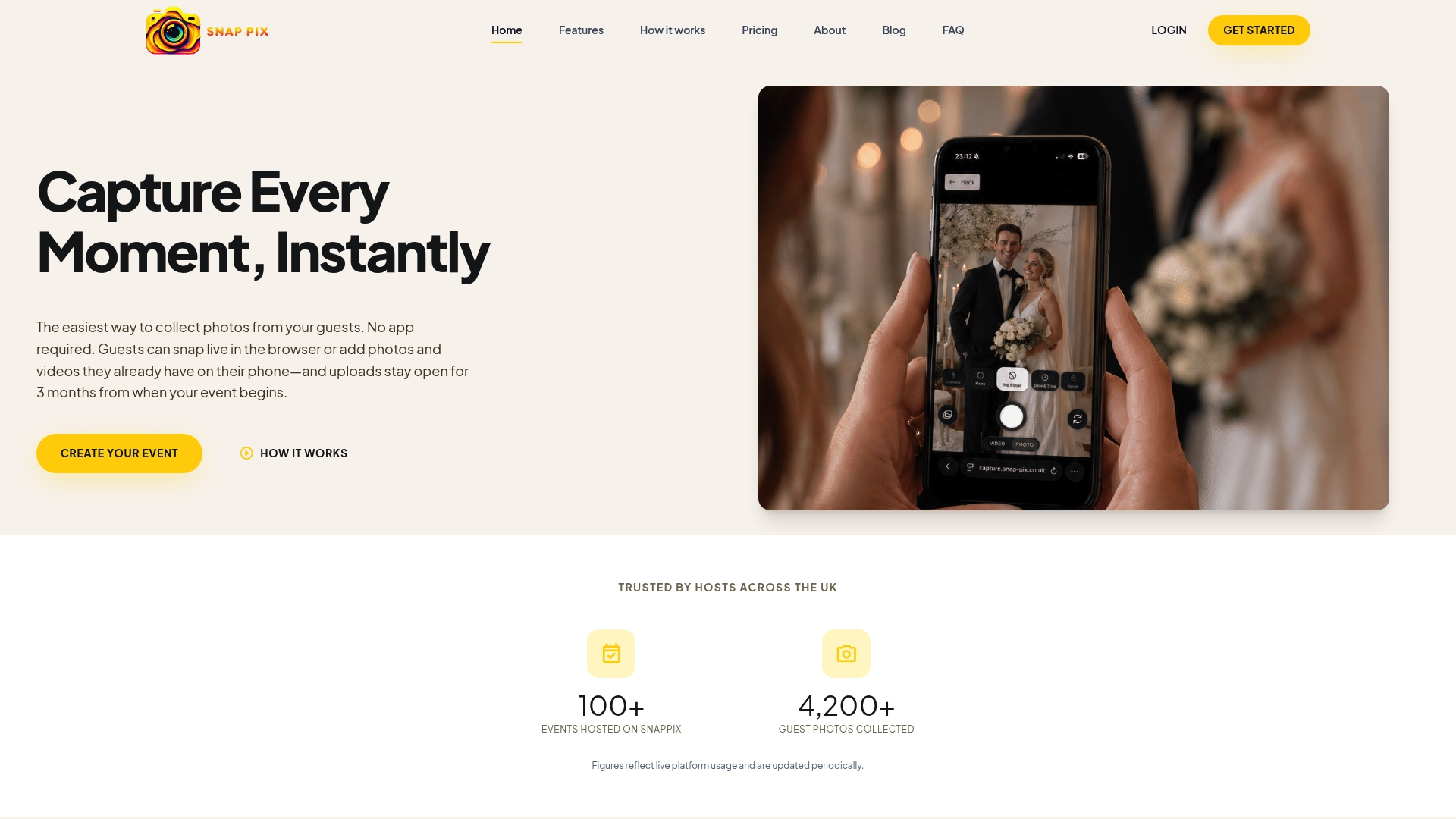
Full access to AI smart albums, photo challenges and the digital guest book costs a one-off £14.99 per event, with a free tier also available for smaller gatherings. Hosts keep the gallery for three months, long enough to sort originals from sanitised exports before sharing with guests. Have a look at the full feature list or check pricing to see which option suits your event.
It depends on who sees the photo and where it is going. Photos shared publicly or with strangers carry more risk when GPS coordinates or timestamps are attached, so sanitising the copy first is worth the extra minute, according to EDUCAUSE’s privacy guidance.
Open the photo on an iPhone and tap the Info button, or check the details panel in Google Photos on Android, to view capture date, camera details and location when present. For a fuller read, download the file and run it through ExifTool or an online metadata viewer.
Removing EXIF stops a photo from quietly revealing a home address, a child’s school or a daily routine through its GPS tag. It is worth doing for any photo leaving your control, particularly images taken at home or around children, while keeping the untouched original safely archived.
Check the Info panel on your phone, since most EXIF fields show up there directly. If the app does not display it, download the file and open it in ExifTool or a metadata viewer to see everything attached, including fields the phone’s own viewer might hide.
These are the support pages and tools worth bookmarking if you want to verify how your own apps handle metadata, rather than taking anyone’s word for it.

Event hosts' practical guide to posed and candid photos: perception research, hands on shooting tips, and no app guest uploads to boost candid coverage.

Which event technologies are production ready for 2026 and how to adopt them with clear consent, governance, and a no app QR photo pilot.

Quickly restore guests' browser camera access with a two minute checklist, host-ready fixes, and a QR upload fallback so photos keep flowing at your event.