Upload From Camera Roll in Seconds: Device Steps and No App QR
SnapPix TeamPublished 3 Oct 202622 min read

The quickest way to upload from your camera roll is the app’s own share or attach button if you already have the destination app installed. No app installed, or you want the file on a computer? Use cloud sync or a USB cable instead. On iPhone, that means Share or AirDrop; on Android, it’s Share or Quick Share; on a computer, USB or cloud sync does the job. If you’re collecting photos from a group of people instead of sending your own, a no-app QR upload tool like SnapPix skips the installation step entirely.
TL;DR:
- Using the app’s share or attach button is the fastest way to upload photos if the destination app is already installed, with options like AirDrop or Quick Share for nearby devices.
- For transferring photos to a computer, USB, AirDrop, or cloud services like iCloud and Google Photos are recommended, with USB requiring full-resolution downloads and cable compatibility.
- Permission issues, unsupported file formats like HEIC or HEVC, and faulty cables are common causes of upload failures, so checking app permissions and converting formats can prevent problems.
- No-app QR upload tools like SnapPix enable group photo collection at events by allowing guests to upload directly from their browser without installing anything.
- For large-scale photo gathering, centralized services with password-protected galleries and automated organization features streamline contributions from multiple users.
Your iPhone keeps this simple once you know where the controls live.
Pro Tip: If an app isn’t showing up in your Share sheet, check Settings > Privacy & Security > Photos and make sure that app has permission beyond “Selected Photos”.
Android gives you more than one gallery app, but the upload logic stays consistent.
Pro Tip: Quick Share transfers happen directly between devices and are encrypted in transit, so they’re a solid option when you don’t want a photo touching the cloud at all.
Each app has its own quirks once you get past the basic share button.
Many failures come down to permissions rather than a broken upload. Apps that can’t see your full camera roll, often because access is limited to “Selected Photos” on iOS, will quietly fail to show the item you’re trying to send, according to Snapchat’s support documentation.
Getting local copies onto a laptop or desktop usually comes down to three routes.
Most upload problems trace back to one of four things.
Pro Tip: If an upload times out rather than failing outright, restart the app, force-close it fully, or switch from mobile data to Wi-Fi before trying again.
Sending your own photos is one problem. Collecting photos from a group of wedding guests can be challenging, and asking everyone to install an app before they’ll share anything is where most event photo collection falls apart. SnapPix was built around that exact gap: a host shares a QR code, and guests open a link in their phone’s browser and upload straight from their camera roll, no account or download required.
If you want more detail on no-app sharing methods generally, this guide to private photo sharing without social media walks through several options side by side, and the piece on browser-based camera capture covers how the underlying QR flow works for anyone curious about the mechanics.
Sending one photo to one person calls for the share sheet, full stop. Backing up your whole library or editing originals later calls for cloud sync or a USB import, since that’s where you keep access to the full-resolution file. Collecting photos from a crowd, a wedding, a school event, a work party, is a different job altogether, and that’s where asking everyone to install something starts to cost you participation. A centralised, no-app upload tool lowers that friction and keeps every contribution in one place instead of scattered across group chats.
— Liam
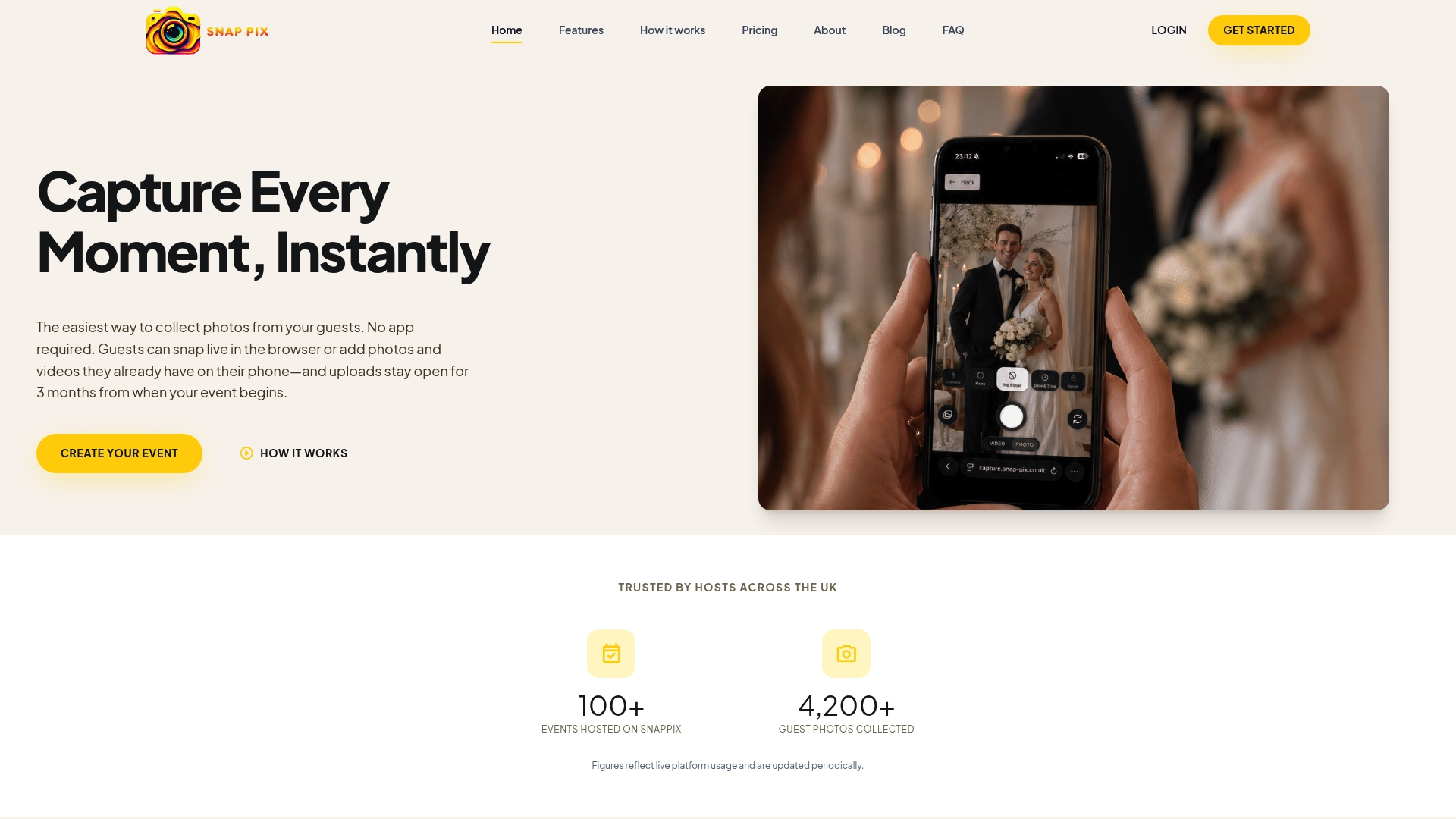
If you’re hosting rather than just sending a single photo, a centralised, no-app upload tool can help guests upload photos in seconds. By activating an event and sharing a QR code, guests can scan it and upload straight from their camera roll through a browser, with no app, no account and no learning curve. For tactics specifically about gathering shots during the event itself, the live event photo sharing guide is worth a read, and teams running their own group photo collection might find the team photo sharing advice from Roster Sports a useful comparison point for a different kind of group event.
| Plan | Price | What it includes |
|---|---|---|
| Full Event Access | £14.99 one-off per event | Unlimited uploads, AI smart albums, photo challenges, password-protected gallery |
| Free | £0 one-off per event | Basic event gallery access |
Check the Full Event Access pricing page to activate a gallery before your next event.
Connect your phone by USB and open Photos on Mac or Microsoft Photos on Windows, then import the selected items directly. If the phone isn’t detected, try a data-capable cable or use Phone Link for Android devices on Windows instead of the cable.
On iPhone, open Photos, select the image, tap Share, then choose Save to Files to drop it into iCloud Drive or another location. On Android, use the Files app to move the photo into local storage or a connected cloud folder.
Open Google Photos, iCloud Photos or OneDrive and turn on automatic backup, or manually select images and tap the upload or share option within the app. Each service keeps a synced copy available across any device you’re signed in to.
Open your gallery app, select the photo, tap Share, then choose the destination app, Quick Share for a nearby device, or Save to Files for local storage. If you’re sending to a specific app like Instagram or Snapchat, the share sheet usually opens that app’s own picker automatically.
A QR code linked to a browser-based upload tool, such as SnapPix, lets guests upload straight from their camera roll without downloading anything. They simply scan the code, open the link, and select the photos they want to add to the shared gallery.

Secure sponsor access to event photos with a host controlled workflow. Use time limited QR links, view only tokens, instant revocation, and access logs.

A practical host first workflow: collect no app QR uploads, keep moderation and professional curation, set retention and backup plans so you stay in control.

Event hosts' practical guide to posed and candid photos: perception research, hands on shooting tips, and no app guest uploads to boost candid coverage.