48 Hour Takedown Clock: US Event Hosts and Anonymous Photo Uploads
SnapPix TeamPublished 29 Sept 202621 min read

Anonymous photo uploads let guests add photos through a QR code and a browser, no app or account required, so you gather more candid shots with far less friction. Guests scan, tap, and upload straight from their camera roll or live camera. For hosts, that means more of the night gets captured. Platforms like SnapPix build this flow around privacy, so you keep control of who sees the gallery and for how long.
TL;DR:
- Ensuring the upload page works on both iPhone and Android browsers and confirming file size limits prevents technical issues during the event.
- Privacy controls such as password protection and clear expiry notices are essential to prevent unwanted sharing and manage access duration.
- Regular moderation, including reviewing uploads daily and removing duplicates, helps keep galleries appropriate and manageable.
- Instant removal of non-consensual or sensitive images within 48 hours is legally required and critical to protecting guest privacy.
The guest side is simple. Someone scans a QR code on a table card or sign, lands on a web page, and uploads a photo or video straight from their phone. No app store, no sign up, no password to remember. Many platforms also let guests add a short caption before submitting, which helps you sort photos later.
On the host side, you create the event first, generate a unique QR code, and decide who can see incoming uploads as they arrive. Most hosts moderate lightly, checking for duplicates or anything off-brand for the event, then approve the rest in batches.
Before the big day, check a few practical details:
This kind of setup, explained in detail in SnapPix’s guide to no-app QR uploads, removes the biggest reason guests skip sharing: friction. If someone has to download an app first, most will not bother.
Guests uploading a photo does not automatically mean they are happy for it to appear in front of every other guest, so treat consent as something you actively communicate, not something you assume. A short line on your signage, such as “photos uploaded here may appear in the shared event gallery,” gives guests a clear heads up before they tap upload.
Look for these controls when choosing a platform:
Retention windows matter here. A multi-month access window, for example, gives guests plenty of time to browse and download without leaving the gallery open forever. Say so on your signage and in any follow up message. That single sentence prevents most disputes about “why can’t I see the photos anymore” weeks later.
Pro Tip: Add your privacy note to both the QR sign and the welcome screen guests see after scanning, so it is impossible to miss.
Running anonymous uploads well comes down to three phases: before, during, and after the event.
Before the event:
During the event:
After the event:
This structure works for weddings and equally for corporate events, where multiple sessions or breakout rooms each benefit from their own QR placement.
Guests upload more when you give them something specific to look for, not a vague “share your photos” request. A simple challenge card near the QR code, such as “best candid shot” or “funniest dance floor moment,” gives people a reason to pull out their phone.
None of this requires guests to attach their names to anything they upload. The prompts drive participation, not identification, which is exactly the point of an anonymous upload flow. The same tactics work well for prom and school events, where younger guests respond strongly to a clear, low effort challenge.
Pro Tip: Change your challenge prompt at least once during a long event. A single static prompt loses its pull after the first hour.
Once uploads start arriving, sorting them by hand quickly becomes unmanageable for anything beyond a small gathering. Smart albums that group photos by time, location within the venue, or detected moments save you hours of manual tagging.
A simple moderation routine keeps the gallery clean:
For sharing, a password-protected gallery keeps access limited to people you invite, while a downloadable pack gives guests a way to keep favourites permanently. Time-limited links work well for sharing a preview with family who could not attend, without leaving the full gallery open to anyone who finds the link. Keeping the gallery off public social feeds, as covered in this guide to private sharing, also avoids the awkward surprise of finding your wedding photos indexed by a search engine.
If someone asks you to remove an intimate image shared without their consent, act immediately rather than waiting to investigate fully first. Covered platforms are legally required to remove intimate images and known identical copies within 48 hours of a valid request, under the TAKE IT DOWN Act.
The TAKE IT DOWN Act sets a firm 48-hour statutory removal window for covered platforms once a valid request is made, so your internal process should aim to act faster than that legal minimum, not right up against it.

Most guides on event photo sharing focus on the fun part: challenges, highlight reels, QR placement. The part that gets skipped is moderation, and it is the part that actually protects your guests. A gallery that fills up automatically with no review step is convenient right up until someone uploads a photo another guest did not want shared.
The fix is not complicated. Check uploads regularly, keep a clear removal process ready before you need it, and be upfront with guests about where their photos are going and for how long. Some platforms build these protections into the workflow, with no-app QR uploads, AI-driven smart albums, and a multi-month access window backed by usage across many guest uploads. Two elements matter more than any feature list: a fast moderation habit and a removal process you never have to improvise under pressure.
— Liam
SnapPix builds the checklist above straight into the platform so you are not stitching together a QR generator, a separate gallery, and a manual moderation spreadsheet. Guests scan, upload from their browser, and you get an organised gallery without asking anyone to install anything.
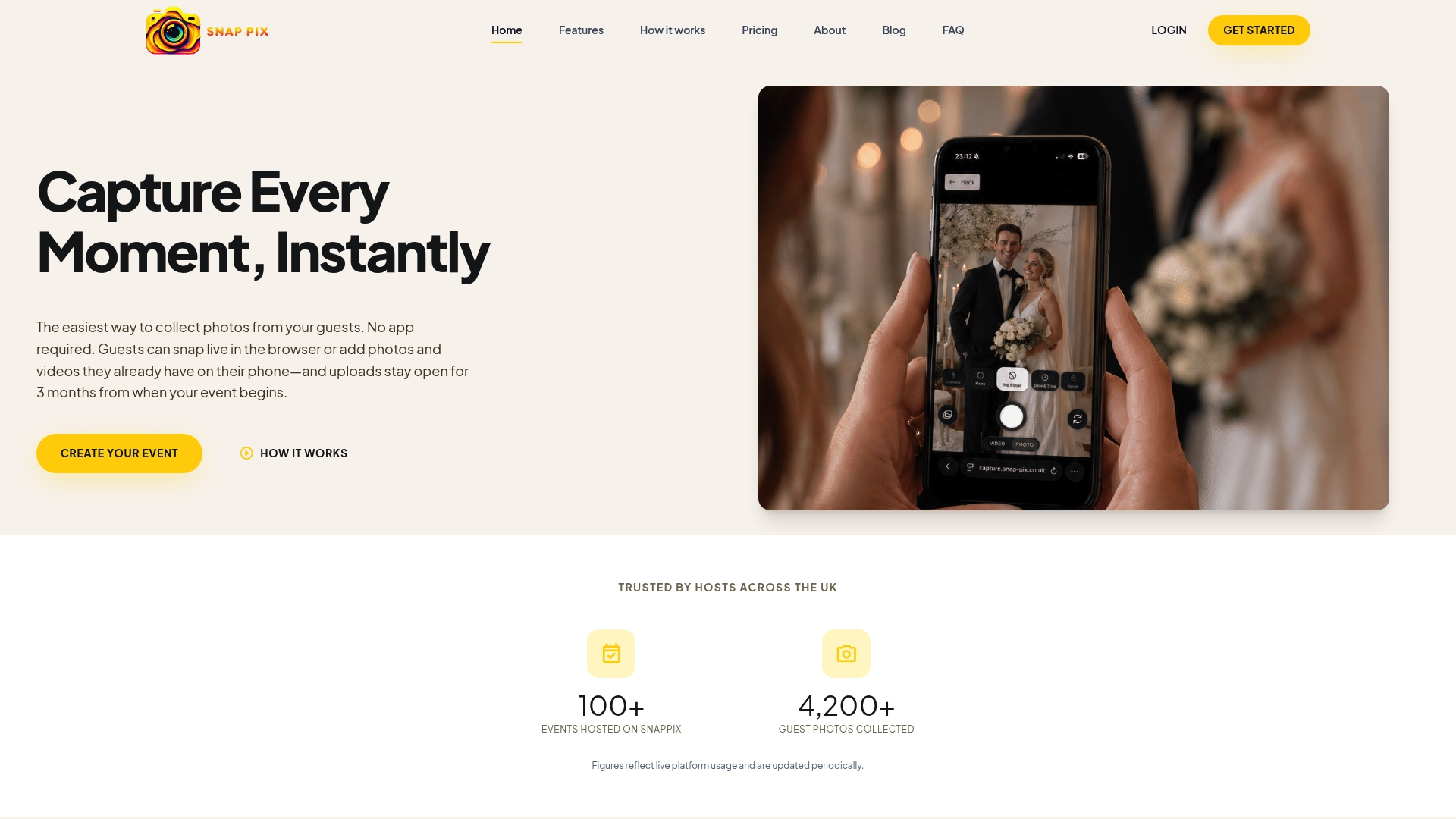
Full details sit on the features page, and you can check current plans, including the Free option, on the pricing page.
For anything touching consent and takedown, go straight to the source: the FTC’s business guidance on compliance and its consumer reporting advice cover the removal process in full.
No. Guests scan a QR code and upload directly through their phone’s browser, with no app download or account needed. This is the core design of platforms like SnapPix and similar no-app gallery tools.
That depends on the platform’s retention policy, so check the specific terms before your event. SnapPix, for example, keeps uploads accessible for three months after the event.
Remove it promptly and confirm the removal with the guest who asked. Under the TAKE IT DOWN Act, covered platforms must remove intimate images and known copies within 48 hours of a valid request.
SnapPix offers a Free plan and a Full Event Access plan at £14.99 as a one-off payment per event. Both are listed on the pricing page with no ongoing subscription required for a single event.
If a platform fails to act on your removal request, escalate it to TakeItDown.ftc.gov. StopNCII.org also offers an image fingerprinting tool that can help prevent the same photo being reposted elsewhere.

Event hosts' practical guide to posed and candid photos: perception research, hands on shooting tips, and no app guest uploads to boost candid coverage.

Which event technologies are production ready for 2026 and how to adopt them with clear consent, governance, and a no app QR photo pilot.

Which routes keep EXIF or strip GPS? Quick checks to view or remove metadata, plus a three month workflow to collect guest photos.